A single number doesn't tell you why Wi-Fi is slow, though. Below is how to test properly, how to tell a Wi-Fi problem from an internet problem, and the free tools Apple ships for finding the cause.
Test the speed with networkQuality
networkQuality is Apple's own network test, and it's already on your Mac:
- Open Terminal (Applications › Utilities, or search for it with Spotlight).
- Type
networkQuality(the capital Q matters) and press Return. - Wait for the summary.
It reports four lines:
- Downlink capacity and Uplink capacity: the most your connection could move down and up, in Mbps. This is what most people mean by "speed".
- Responsiveness: rated Low, Medium or High, with a figure in RPM (round trips per minute). Apple's explanation: at Low, apps may be unreliable while other devices are busy on the network; at Medium you might see momentary pauses or freezes; at High, apps should keep a good connection however many devices share it.
- Idle Latency: how quickly the connection answers when nothing else is happening.
Responsiveness is the line to read when video calls freeze but the speed looks fine. A connection can show hundreds of Mbps and still rate Low, because it slows right down the moment it's busy.
Two options from its manual page (man networkQuality) are useful here:
networkQuality -sruns download and upload one after the other instead of together, which lets it measure responsiveness for each direction on its own.networkQuality -I en0runs the test on one network interface, so a plugged-in cable can't skew a Wi-Fi test.en0is only an example: to see which device name is your Wi-Fi, runnetworksetup -listallhardwareportsand look for the one listed under Wi-Fi.
The test connects to the internet and uses data on your plan, which matters on a hotspot.
Speed test websites measure the same thing (capacity at that moment) and work fine too. Whichever you use, run it two or three times; one result can catch a busy moment.
Is it the Wi-Fi or the internet?
This is the question that decides what to fix. Run the same test in three places:
- Next to the router. If it's slow here too, Wi-Fi range isn't the problem.
- Where you normally work. If it's much slower than next to the router, the signal is the problem.
- With an Ethernet cable, if you can. Wired fast and Wi-Fi slow points at the Wi-Fi. Both slow points at the internet connection itself, which is a call to your provider.
Compare the result with what your plan promises. Plans are sold in megabits per second (Mbps); downloads usually show megabytes per second (MB/s), and there are 8 bits in a byte, so 100 Mbps is at most 12.5 MB/s. The free download time calculator does that conversion and tells you how long a file should take at your speed.
Check the signal: Option-click the Wi-Fi menu
Hold Option and click the Wi-Fi icon in the menu bar. Apple lists what appears under your network: the IP address, router address, channel, frequency band, security and 802.11 protocol. The same view shows the RSSI, the signal strength in dBm, and Apple's guide to Wi-Fi roaming says a Mac stays with its current access point until the RSSI crosses −75 dBm, and only then looks for a stronger one.
RSSI is negative, so closer to zero is better: −55 is stronger than −75. If you're down near −75 or below at your desk, moving closer to the router, or adding another access point, is often the real fix.
While you're there, look at the band. If your router offers 5 GHz or 6 GHz and you're on 2.4 GHz, see the router settings below. The same menu also shows a Tx Rate; that's the link to the router, not your internet speed, as the guide to live network speed explains.
Look for Wi-Fi Recommendations
Click the Wi-Fi icon (without Option) and check for a menu item named Wi-Fi Recommendations. Apple says that if you see it, your Mac has detected an issue and has recommendations; choose it to read them. It isn't offered on personal hotspots or on networks that use enterprise security such as WPA2 Enterprise.
Run Wireless Diagnostics
Wireless Diagnostics is built into macOS, and it's meant for exactly the case where you're connected but pages, email or streaming are slow. Apple's steps:
- Quit all open apps.
- Join the Wi-Fi network you're having trouble with, if you're not already on it.
- Hold Option, click the Wi-Fi icon in the menu bar, and choose Open Wireless Diagnostics.
- Follow the onscreen instructions. When it finishes, click the Info buttons in the Summary to read about each issue it found.
It doesn't change your settings. For a connection that drops now and then rather than all the time, it can monitor the Wi-Fi instead: monitoring continues while its Monitor pane is open and you stay on the same network, and it describes any issue it catches. It also saves a report you can send to your provider or IT support: a file starting WirelessDiagnostics and ending .tar.gz in /var/tmp.
The usual fixes, from Apple's own advice
Apple's troubleshooting and router recommendations point at the same short list:
- Restart the Mac. It renews the address the router gave it, which can clear a stale connection.
- Check VPNs and security software. Apple notes that software which monitors or interacts with your network connections can affect access to the internet.
- Restart the router and update its firmware, using its manufacturer's app or web page.
- Router settings, if it's your router: enable every band it supports; use one network name for all bands, since giving 2.4 GHz and 5 GHz different names can stop devices connecting reliably; set the channel to Auto; use 20 MHz channel width on 2.4 GHz. Apple also notes that old security modes such as WEP, WPA or TKIP reduce reliability and performance as well as security. Use WPA3 Personal, or WPA2/WPA3 Transitional.
- Look for something else using the connection. A cloud backup or a big sync can fill the line and make everything else feel slow. The live network speed guide shows how to find it in Activity Monitor.
When slow Wi-Fi comes and goes
The hardest case is Wi-Fi that's fine whenever you test it and bad at the moment that matters: a call that froze at 3 pm, a connection that dropped twice this morning. A speed test only exists while it runs, so it can't tell you what happened an hour ago.
That's where SpeedPro helps, though it is not a speed test: it never opens a network connection of its own, so it can't measure your connection's capacity. Use networkQuality for that. What it does instead is watch your Mac's real traffic all the time:
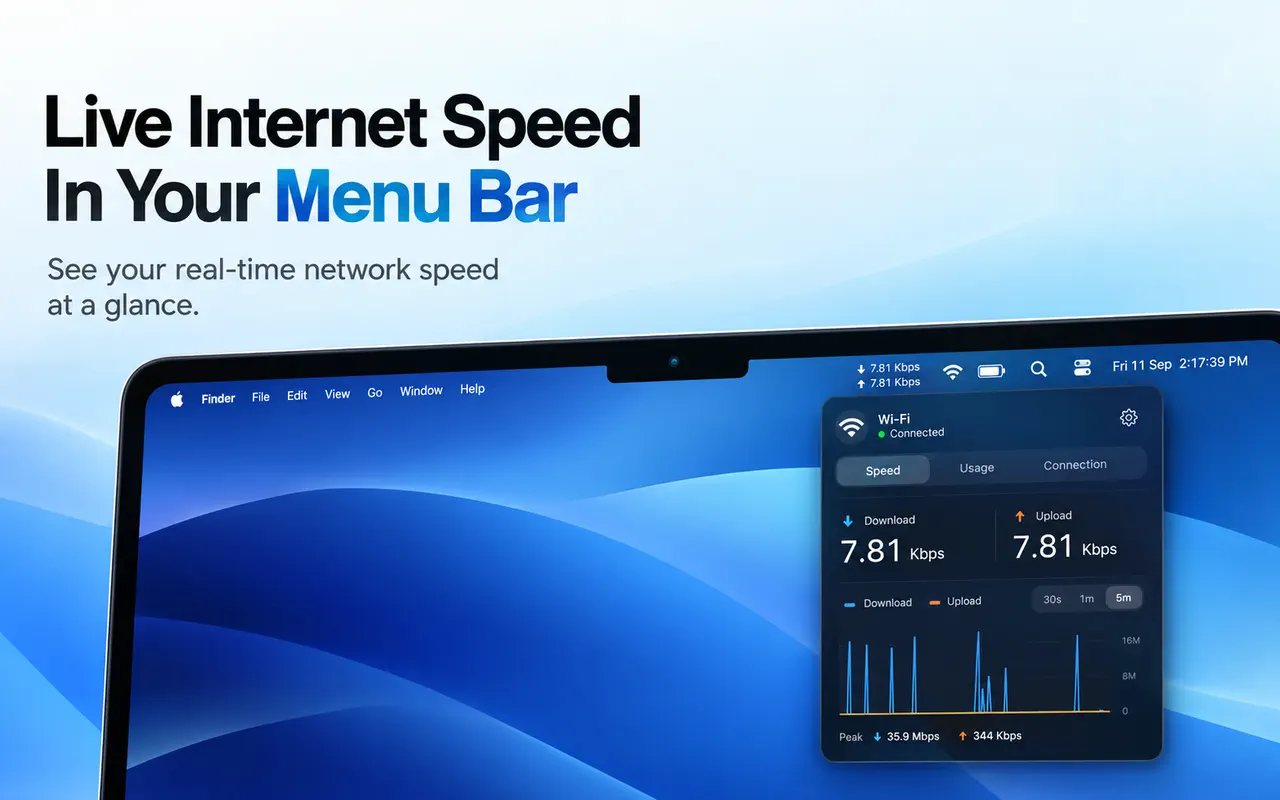
- Live download and upload in the menu bar, every second, with a chart of the last 30 seconds, minute or five minutes.
- A log of every drop and reconnection: how long you were down, and how long you'd been up before it.
- Alerts when the connection drops or comes back, or when download speed falls well below its recent average.
- Your interface, local IP address, router and link rate in one place, each one click to copy.
- 90 days of data usage, with a daily limit that warns at 80% and 100% for hotspots.
So the drop log answers "did it actually drop, and when?", and networkQuality answers "how fast can it go?". At the time of writing SpeedPro is a one-time purchase of $4.99 on the Mac App Store, with no subscription, and it needs macOS 15.1 or later.
FAQ
How do I check my Wi-Fi speed on a Mac without an app?
Open Terminal, type networkQuality and press Return. It's built into macOS Monterey and later and reports download and upload capacity and responsiveness.
Why is my Mac's Wi-Fi slow when other devices are fine?
Check the signal first: Option-click the Wi-Fi icon and look at the RSSI. Then try Wi-Fi Recommendations, Wireless Diagnostics, a restart, and any VPN or security software on that Mac.
What does Responsiveness Low mean in networkQuality?
Apple says that at Low, the connection in some apps or services might be unreliable while other devices are busy on the network. It often explains freezing video calls on a connection that tests fast.
What is a good RSSI on a Mac?
Closer to zero is stronger. Apple's Wi-Fi roaming guide says a Mac starts looking for a stronger access point when the RSSI crosses −75 dBm, so readings near or below that are weak.
Is the speed test result my Wi-Fi speed or my internet speed?
Both are in the path, so the slower one sets the result. Test next to the router and, if you can, over Ethernet: if wired is much faster, the Wi-Fi is the bottleneck.
Does networkQuality use data?
Yes. Its manual page says it connects to the internet and uses data on your plan, so keep tests short on a metered hotspot.