What the built-in apps can and cannot do
- Preview can add text or a signature to one image at a time with its markup tools. There is no way to apply the same mark across a batch.
- Photos has no watermark feature at all.
- Shortcuts can overlay an image on a batch of photos if you build the shortcut yourself, which is a small project of its own.
For a single photo, the free photo watermark tool on this site adds a text or logo mark in your browser, without uploading the photo.
The Terminal route
ImageMagick, a free command-line tool (installable with Homebrew as brew install imagemagick), can stamp a logo on every image in a folder:
mkdir -p markedfor f in *.jpg; do magick "$f" logo.png -gravity southeast -geometry +40+40 -composite "marked/$f"doneIt is free and precise. It is also unforgiving: sizing the logo relative to each photo, setting opacity, and handling a folder of mixed sizes and formats each take more flags, and there is no preview until the files exist.
A batch app
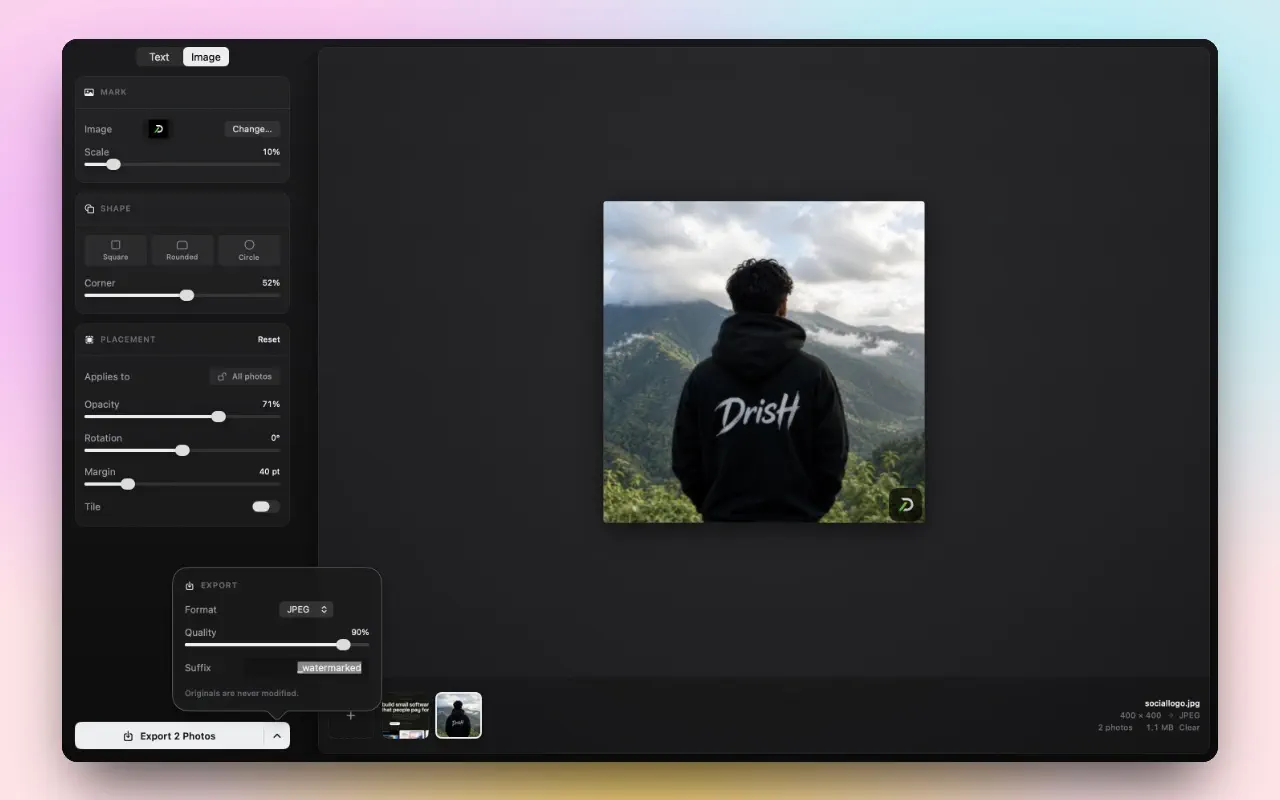
StampMark, from this studio, is built for this job on a Mac. Drop in the photos and set up the watermark once: your logo or custom text, with position, size, opacity, rotation and tiling. Check it on the live preview, then export the whole batch in one go. It handles JPEG, PNG, HEIC, TIFF, BMP, GIF and WebP, and runs entirely on the Mac, so client work is never uploaded to a watermarking website.
Where to put a watermark so it does its job
A watermark is doing one of two jobs, and they want different placement.
- Branding: so people know where a photo came from when it is shared. A small, semi-transparent logo in a corner does this without spoiling the photo.
- Protection: so a proof cannot simply be used without paying. A corner mark can be cropped off in seconds. For proofs, use a larger mark across the subject, or a tiled pattern across the whole image, at an opacity that is visible but lets the client judge the photo.
A few habits help either way:
- Keep the originals. Watermark copies into a separate folder; never overwrite the files you will deliver.
- Size relative to the photo. A logo that is right on a landscape shot is huge on a small square crop. Check a few different photos in the preview before exporting all of them.
- Match the platform. Social platforms recompress images; a very faint watermark can disappear entirely after upload.
FAQ
Can I watermark multiple photos at once in Preview?
No. Preview can mark up one image at a time, but it cannot apply the same watermark to a batch.
What is the best place for a watermark?
A corner for branding; across the subject, or tiled, for proofs you need to protect from being used unpaid.
Can a watermark be removed?
A small corner watermark can be cropped out. A larger or tiled mark across the image is much harder to remove cleanly.
Can I watermark photos without uploading them?
Yes. ImageMagick and StampMark both run on your Mac, and nothing is uploaded.
Which formats can I watermark?
StampMark handles JPEG, PNG, HEIC, TIFF, BMP, GIF and WebP.