Below is every free method that works on a Mac, what each is good at, and the point where a dedicated comparison app starts to earn its price.
Method 1Terminal's diff, already on your Mac
Every Mac ships with diff. Open Terminal, type diff -u , drag the first file into the window, drag the second after it, and press Return:
diff -u contract-v1.txt contract-v2.txtLines starting with - are only in the first file, lines starting with + are only in the second, and the lines around them are context. No output at all means the files are identical.
A few switches cover most real questions:
diff -q a.txt b.txtonly says whether the files differ.diff -w a.txt b.txtignores whitespace, for when indentation moved but the content did not.diff -i a.txt b.txtignores the difference between capital and small letters.diff -rq folder-a folder-blists which files differ between two folders.
It's exact and fast, and the output is easy to paste into an email. The catch is that it reports whole lines: a line that changed by one character shows up as one removal and one addition, and you have to spot the character yourself.
Method 2BBEdit's free mode, side by side
BBEdit is a long-running Mac text editor from Bare Bones Software. After its 30-day evaluation ends it keeps working in a free mode, and Bare Bones' own comparison chart lists "Built-in file and folder comparison with Find Differences" and "Find Differences displays word- and character-level differences" among the features free mode keeps (read on 24 November 2026; a full licence is US$59.99).
- Open BBEdit and choose Search›Find Differences.
- Pick the two files, or two folders, you want to compare.
- BBEdit shows the differences with the changed words and characters highlighted inside each line, and you can apply a change from one file to the other.
It's the best free option for people who don't live in Terminal, and it compares folders as well as files.
Method 3FileMerge, if you have Xcode
If you have Apple's Xcode installed, it includes FileMerge, a side-by-side comparison app. Search for "FileMerge" in Spotlight, or run opendiff old.txt new.txt in Terminal. Xcode is a very large download to get one comparison window, so install it for this only if you already need it.
Method 4In a browser, on any computer
The free Text Diff tool on this site compares two pasted texts line by line in the browser tab, with options to ignore case and whitespace. Nothing is uploaded. It's handy on a borrowed computer or for two snippets, and like diff it works line by line, without highlighting the changed characters inside a line.
Can Preview, TextEdit or Pages compare two files?
No. None of the three has a compare feature, so pasting both versions into one document and reading them is the slow way everyone tries first. Preview can show two documents in tiled windows, but it doesn't mark what changed. Use one of the methods above instead.
How do I compare PDFs, folders and Word documents?
Each needs a slightly different tool:
- PDFs: a PDF is not a text file, so
diffcan't read it directly. See how to compare two PDFs on a Mac. - Whole folders:
diff -rqor BBEdit's free folder comparison will tell you which files differ. - Word documents: Word's own Review›Compare is built for exactly this.
- Spreadsheets: see how to compare two Excel files on a Mac.
When is a paid diff app worth it?
When the files aren't plain text, or when you need proof rather than a list of changes. For plain text, the free tools cover a lot: BBEdit's free mode already shows the changed characters inside a line and lets you carry changes across. A dedicated app starts paying for itself with:
- Structured files. JSON, Plist and XML compared by their values, so reordered keys and new indentation don't show up as changes.
- PDFs and images. The text of two PDFs compared page by page, or two images compared with a swipe slider or a pixel-difference view.
- Proof that nothing changed. Two files that read the same can still differ in line endings or text encoding, and a text comparison quietly hides that.
- A result to send. The comparison exported as HTML, PDF or a
.patchfile.
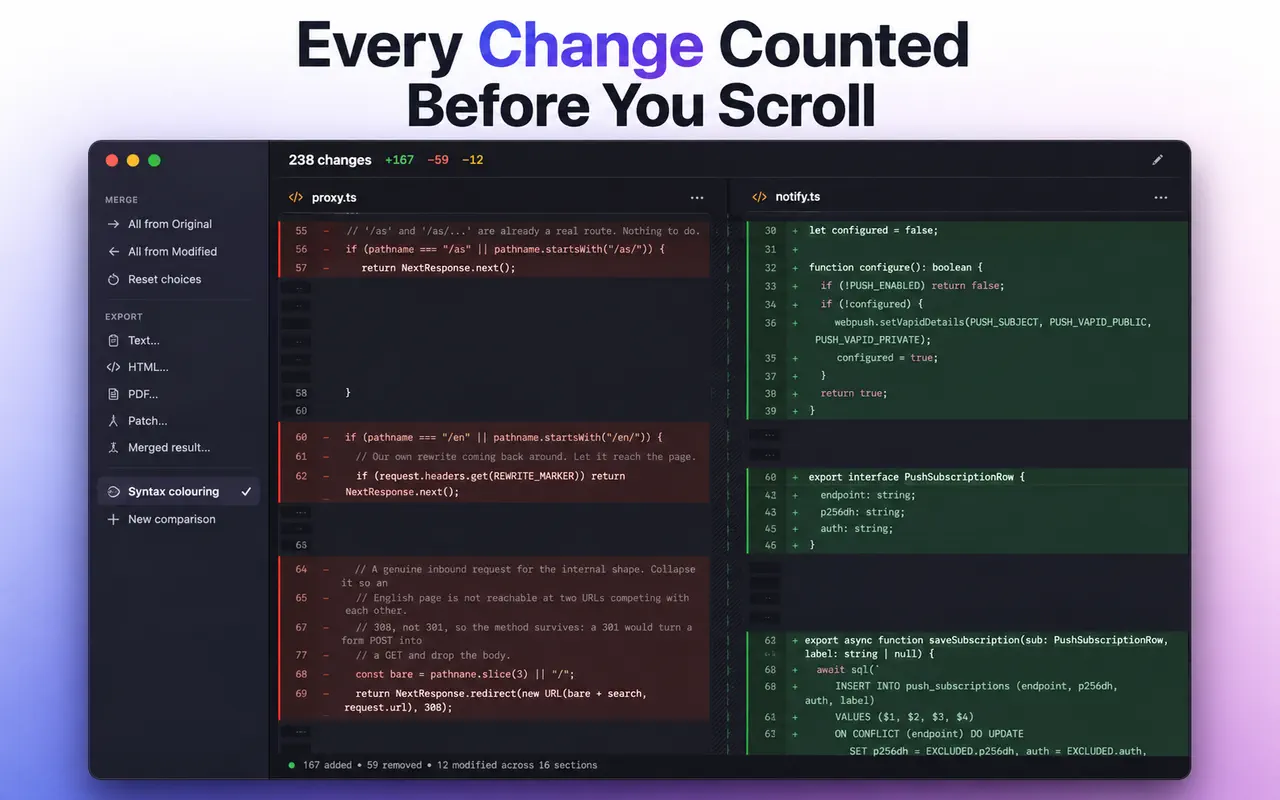
That's what DiffSnap is for. Drop two files and it works out what they are: text and source code, PDFs, JSON, Plist, XML, images, or binary files shown as hex. Every comparison opens with a one-line summary of what changed. Each file shows its SHA-256 checksum (a fingerprint of its exact bytes), so two files that match are provably identical. Changes in text and code are highlighted down to the character. You can edit a line in place, pick changes line by line, then export the result as text, HTML, PDF or a .patch file.
It compares files, not folders: for a folder, use diff -rq or BBEdit. It runs entirely on your Mac, with nothing uploaded. It is $6.99 on the Mac App Store, a one-time purchase, and needs macOS 15.1 or later.
FAQ
Can I compare two files on a Mac without installing anything?
Yes. Run diff -u first.txt second.txt in Terminal. It's built into macOS and lists every line that differs between the two files.
Is there a free side-by-side diff app for Mac?
Yes. BBEdit keeps its Find Differences comparison in free mode after the trial ends, and FileMerge comes with Xcode. The Text Diff tool on this site works in any browser.
Why does diff say every line changed when the files look the same?
Usually one file has Windows line endings (CRLF) and the other has Mac/Unix ones (LF), or one has different spacing. Try diff -w, or check each file's encoding and line endings.
How do I compare two folders on a Mac?
Run diff -rq folder-a folder-b in Terminal to list the files that differ, or use BBEdit's free Find Differences, which compares folders too.
Can Preview compare two files?
No. Preview can show two documents side by side in tiled windows, but it doesn't highlight differences. Use Terminal's diff, BBEdit or a comparison app.
Can Pages or TextEdit compare two documents?
No. Neither has a compare feature. Word's Review › Compare does it for Word documents; for plain text, use Terminal's diff or BBEdit.