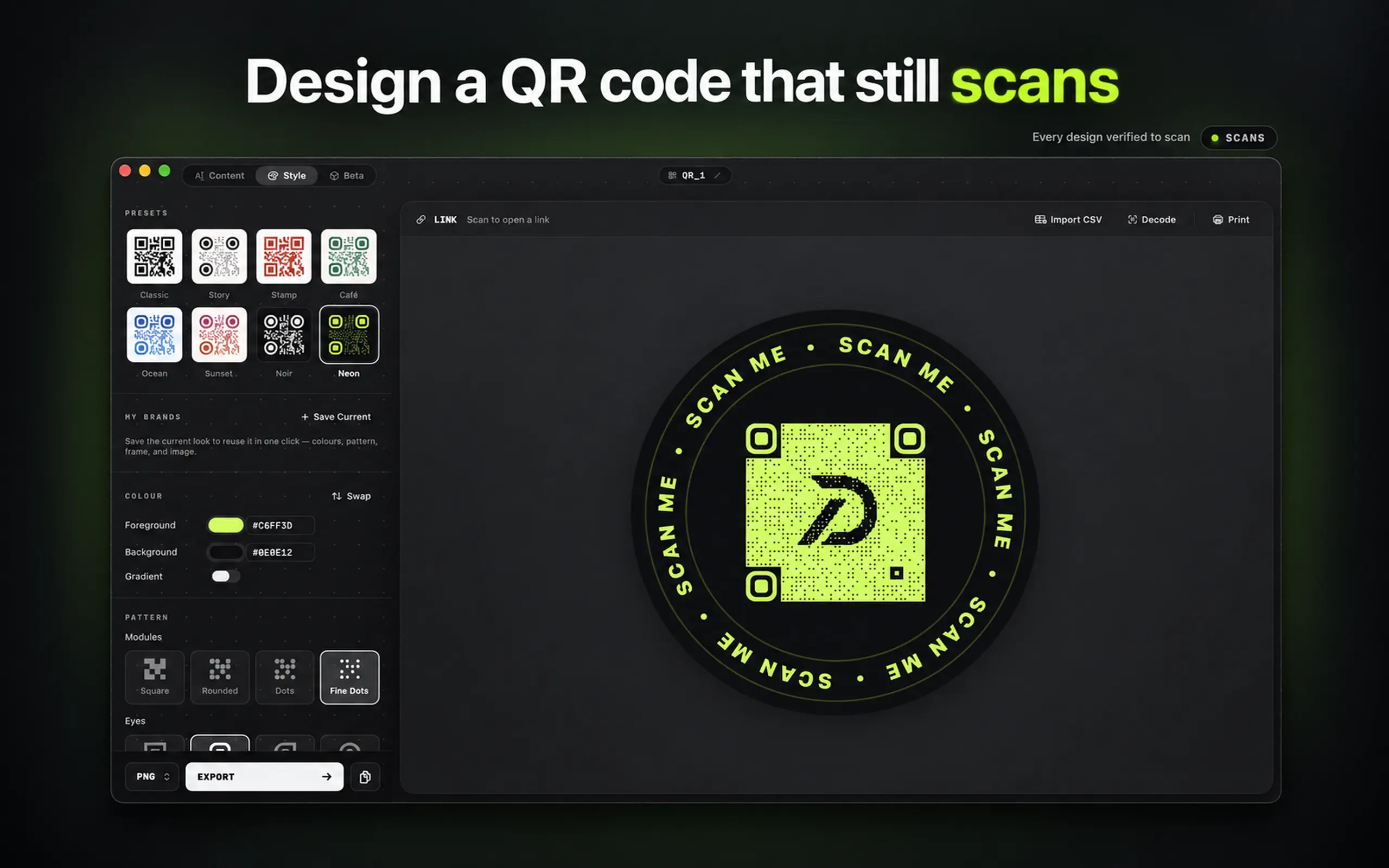
Below is how to keep it scanning, the free way first.
Why a logo can sit on a QR code at all
QR codes use Reed–Solomon error correction, at one of four levels. Denso Wave, the company that invented the QR code, lists how much of the data each level can restore:
| Level | Restores roughly |
|---|---|
| L | 7% |
| M | 15% |
| Q | 25% |
| H | 30% |
Denso Wave notes that M is the most commonly chosen. For a code with a logo over it, use H: the logo spends part of that recovery budget before the code has been scuffed, folded or photographed at an angle. The cost is density: at a higher level the same content needs more, smaller squares, so a long URL at H can make a busy code. Shorter content gives bigger squares that scan faster and from further away.
Denso Wave's own advice is cautious: it warns that overlaying an illustration can deform the code so that even a small smear makes it unreadable. Everything below is about staying well inside the margin rather than finding its edge.
The rules that keep it scanning
- Error correction H. Choose it before you add the logo, not after.
- Keep the logo small and centered. There is no official size limit; a sensible start is a logo about a fifth of the code's width, then test before making it any bigger.
- Never cover the three corner squares. They are the position markers a scanner uses to find the code and work out its angle.
- Give the logo a solid background. A plain white (or background-colored) box behind the logo, slightly larger than the logo itself, reads better than a logo floating over the pattern.
- Keep the quiet zone. Denso Wave specifies a clear margin four squares wide on every side. Frames, text and table edges belong outside it.
- Dark code, light background, strong contrast. Color is fine if the contrast is high. Denso Wave gives two combinations that cannot be read by scanners that use red light (a red code on white, and a blue code on green), because both colors reflect or absorb red alike.
- Export as a vector for print. SVG or PDF stays sharp at any size; a small PNG scaled up for a poster turns soft at the edges of each square.
Make one free
- Open the free QR code generator on this site, enter your link, and set error correction to H.
- Pick dark-on-light colors; it checks the contrast as you go. Download the code as SVG.
- Place the SVG in Keynote, Pages, Figma or any design tool you already use.
- Add a white rounded rectangle in the center, then your logo on top of it, at about a fifth of the code's width.
- Export, then test it (below) before you print anything.
The generator itself runs in your browser and uploads nothing. The limit of this route is step four: you place the logo by eye, and nothing tells you whether you have covered too much until you test.
Test it like a stranger would
- Use more than one phone. The built-in camera on an iPhone and on most Android phones reads QR codes; try at least one of each, and an older phone if you have one.
- Test at the real size. Print it, or show it on screen at the size it will be used. A code that scans at 10 cm across can fail at 2 cm.
- Test from the real distance and angle, in dim light, and on the actual material (glossy paper and screens reflect).
- Check where it goes. Scan, open the link, and make sure it is the address you meant.
If it fails, shrink the logo, shorten the content, or both.
QR Craft: logo, checks and print files on a Mac
QR Craft is the Mac app for codes that have to look like they belong on the menu, the card or the packaging.
- Logo mode centers your mark with automatic clearance around it
- A Decode tab: drop in an image of the code, and QR Craft reads it back and tells you what it holds, so you can check it before anything is printed
- Colors, gradients, module and eye styles, frames with captions, and saved brand colors
- SVG and PDF export as true vectors, or PNG up to 4096 px
- Batches from a CSV, and print-ready sheets on A4 or US Letter
- Offline: no account, nothing uploaded
At the time of writing it is $5.99 on the Mac App Store, a one-time purchase, and it needs macOS 15.1 or later.
FAQ
Can you put a logo in a QR code?
Yes. Set error correction to H, keep the logo small and centered on a solid background, keep it off the three corner squares, and test the result on more than one phone.
How big can a logo on a QR code be?
There is no official limit. Level H can restore about 30% of the data, but the logo is not the only damage a code takes, so start at about a fifth of the code's width and test before going bigger.
Which error correction level should I use with a logo?
H. It restores about 30% of the data, the most of the four levels.
Why does my QR code with a logo not scan?
Usually the logo is too big, it covers a corner square, the quiet zone has been cropped, the contrast is too low, or the content is long enough to make the squares tiny. Fix one at a time and test again.
Can a QR code be in color?
Yes, with high contrast and a dark code on a light background. Some color pairs fail: Denso Wave names a red code on white and a blue code on green as unreadable by scanners that use red light.
Does adding a logo change where the QR code points?
No. The logo only covers part of the pattern; the link is the same, as long as the code still scans.