Image Compressor
- Runs in your browser
- Nothing uploaded
- No sign-up
 Need more than this?
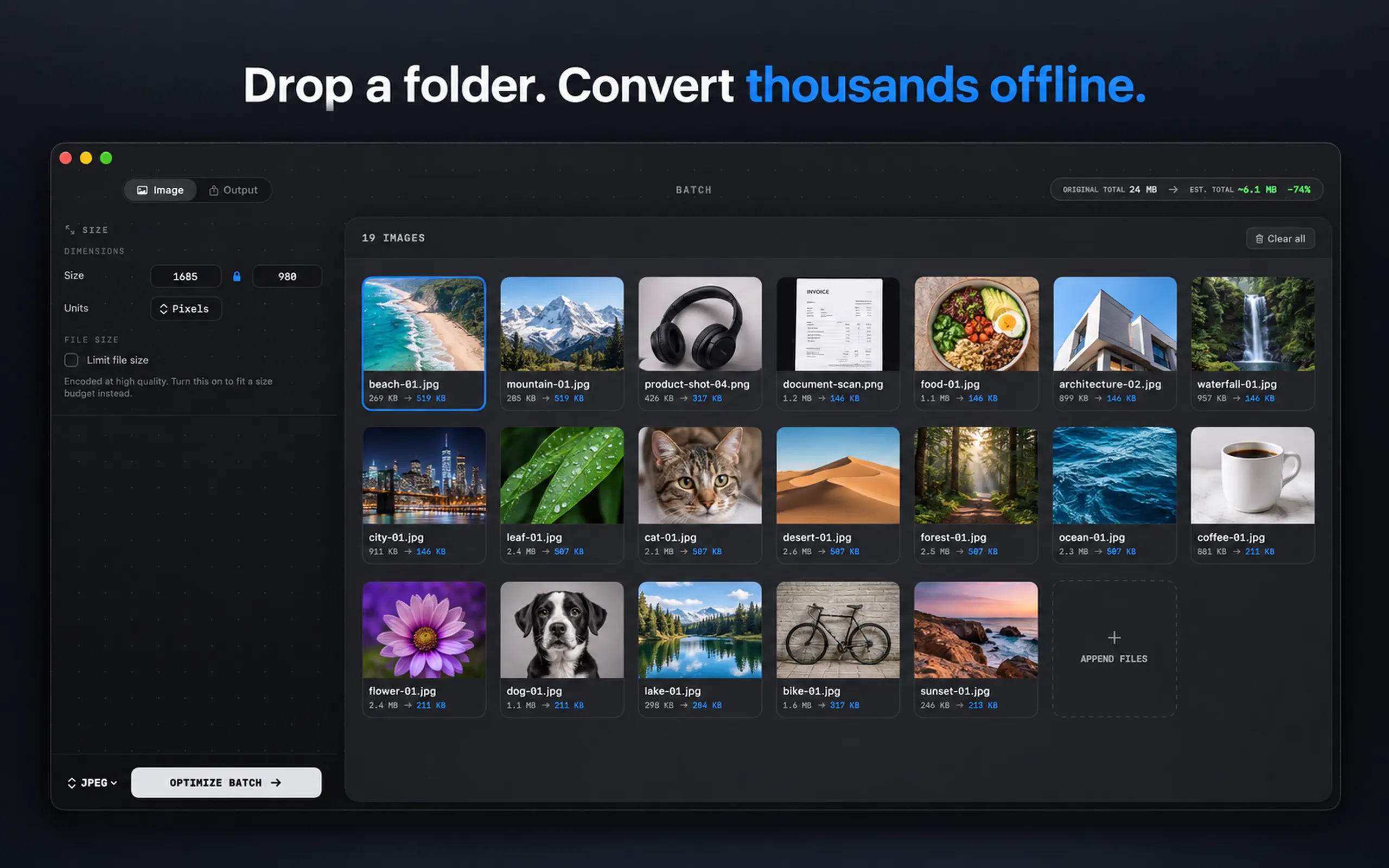
Image Converter for Mac
Converts HEIC, PSD, TIFF and EPS and batches hundreds of files offline — including the formats a browser cannot open.
Not today? Get an email when Image Converter gets better
Updated · DRISH LABS
How do you compress an image to a specific size in KB?
To compress an image to a specific size in KB, the quality has to be searched for, because an encoder takes a quality, not a size. Encoding at a middle quality, checking the size and halving the range each time finds the highest quality that still fits under the limit. If even the lowest quality is too big, reduce the pixel dimensions. For photographs, quality 70–80 is usually indistinguishable at normal viewing size.
How it works
- Drop one image or a batch — JPEG, PNG or WebP.
- Choose WebP (smaller, and keeps transparency) or JPEG (opens everywhere), then compress by quality with the slider, or by target size: each file is fitted under a number of kilobytes by searching for the highest quality that fits.
- Optionally cap the longest side; shrinking the pixels is usually worth more than lowering the quality.
- Every file shows its size before and after. Pick one to compare the original and the compressed version side by side — fitted, or at actual pixels with the two panes scrolling together, which is where compression artefacts show.
- If re-encoding would make a file bigger — common with JPEGs that are already well compressed — the original is kept and the row says so. Download one file, or all of them as a ZIP.
Why the target size is a search
An encoder takes a quality, not a size, and the size a quality produces depends entirely on the picture: a clear sky compresses far more than foliage. To hit a limit, the page encodes at quality 50%, checks the size, and halves the range towards whichever side was right — eight encodes narrow it to within half a percent. The result is the highest quality that still fits. If even the lowest quality does not fit, that file is flagged; reducing its pixel dimensions is the next lever.
q ∈ [0.05, 0.95]: encode(mid) ≤ target ? low = mid : high = mid ×8 → highest q under the limit
When you need it
- An upload form that says “under 500 KB”
- Choose Target size, type 500, and every file comes out under it at the best quality that fits — no guessing a quality number and retrying.
- Photos for a website
- WebP at quality 75 with the longest side capped at 2000 pixels typically cuts a phone photo by 80–90% with no difference visible at normal size. Check the actual-pixels view on a detailed area before trusting it.
- Images for an email or a message
- Choose JPEG so they open everywhere, and a target size well under the attachment limit.
- Spotting over-compression
- Blocky skies, smeared fine detail and halos around text are the artefacts compression leaves. They are invisible in a thumbnail and obvious at actual pixels, which is why the comparison scrolls both images together.
Questions
Are my images uploaded?
No. They are decoded, re-encoded and zipped by your browser. Nothing is sent to a server.
Why did a file get bigger, or stay the same?
An image that is already well compressed can grow when it is encoded again, especially a JPEG at low quality. When that happens and the format has not changed, the page keeps the original and says so rather than handing back a bigger file.
Can it compress PNG?
It turns PNGs into WebP or JPEG, which is where the real savings are for photographs. A browser cannot write a smaller lossless PNG on its own; for screenshots and graphics that must stay PNG, a dedicated optimiser such as oxipng does better.
What quality should I use?
For photographs, 70–80 is usually indistinguishable from the original at normal viewing size. Below about 60, artefacts start to show in skies and skin. Check with the actual-pixels comparison.
Does compressing remove EXIF and location data?
Yes. Re-encoding through a canvas keeps only the pixels — no GPS, camera or timestamp metadata — and applies the photo’s orientation so nothing comes out sideways.
How is this different from the image format converter?
The converter changes formats — PNG, JPEG, WebP, AVIF — for compatibility. This page is for making files smaller: a target size, a side-by-side comparison, and never returning a bigger file.
Keep going
The best image converters for Mac in 2026, free and paid
Mac image converters compared on price.
GuideHow to see and remove photo metadata (EXIF) on a Mac
See a photo's EXIF data and location in Preview on a Mac.
GuideHow to convert HEIC to JPG on a Mac (one photo or a whole folder)
Convert HEIC to JPG on a Mac for free with Preview.
Guide