Below is what a photo's metadata holds, the free ways to read and remove it, and when an app saves the clicking. Menu names are from macOS 27; older versions may word them slightly differently.
What metadata does a photo carry?
Most photos from a phone or a camera carry EXIF data: the camera or phone make and model, the lens, the exposure settings, the date and time it was taken and, if location was on, the GPS coordinates of where it was taken. Some also carry IPTC or XMP fields, such as a caption, keywords or a copyright line, added by the camera or an editing app. None of it shows in the picture, but it travels with the file when you send it, unless something strips it on the way.
Method 1Preview, to see everything and remove the location
Preview, already on your Mac, shows a photo's metadata and can remove its location. Apple's Preview guide says the Inspector's More Info view shows "information about an image in different formats, and about where a photo was taken."
- Open the photo in Preview.
- Choose Tools›Show Inspector, or click the Info button in the toolbar.
- Click the More Info tab. Its tabs split the data by kind; when the photo has a location, one of them is GPS.
- To remove the location, open the GPS tab and click Remove Location Info, then close or save the file.
Apple adds a quick check: choose Tools›Show Location Info, and if it appears in grey, the image has no location information.
The limit: Remove Location Info removes the location only. The camera model, the settings and the date stay in the file, and Preview works on one photo at a time. If you want to keep an original with its location, duplicate the file first.
Method 2Photos and Finder, for a quick look
Finder shows a short version without opening anything: select the photo, choose File›Get Info, and open the More Info section for details such as the dimensions and, where the file has them, the device that took it.
Photos keeps the location separate from what you export. To leave it out of exported copies, choose File›Export›Export [number] Photos and turn off the Location Information option. To hide it in the library, select the photos and choose Image›Location›Hide Location, which Apple lists alongside Revert to Original Location.
Method 3Terminal, to read it in a script
Two commands read metadata from Terminal, and one free tool removes all of it:
sips -g all photo.jpgis built into macOS. It prints the image's properties, including the camera make and model and the creation date where the file has them.- ExifTool, free and open source, reads and writes every kind of metadata. Install it with
brew install exiftool, thenexiftool photo.jpglists everything andexiftool -all= photo.jpgdeletes all of it. Its documentation says it keeps the untouched file beside the new one, with_originaladded to its name.
exiftool -all= *.jpgThat line strips every JPEG in the folder. Check one of the results before you delete the _original copies.
Method 4A free browser tool, for a few photos
The free Image Format Converter on this site strips EXIF metadata, GPS location included, as it converts. Drop in a few photos, choose JPEG, PNG or WebP and a quality, and download the clean copies. It runs in the browser tab and uploads nothing. Converting re-encodes each photo, so pick a high quality if the picture matters, and keep the originals if you need their dates.
Method 5Image Converter, for a whole folder
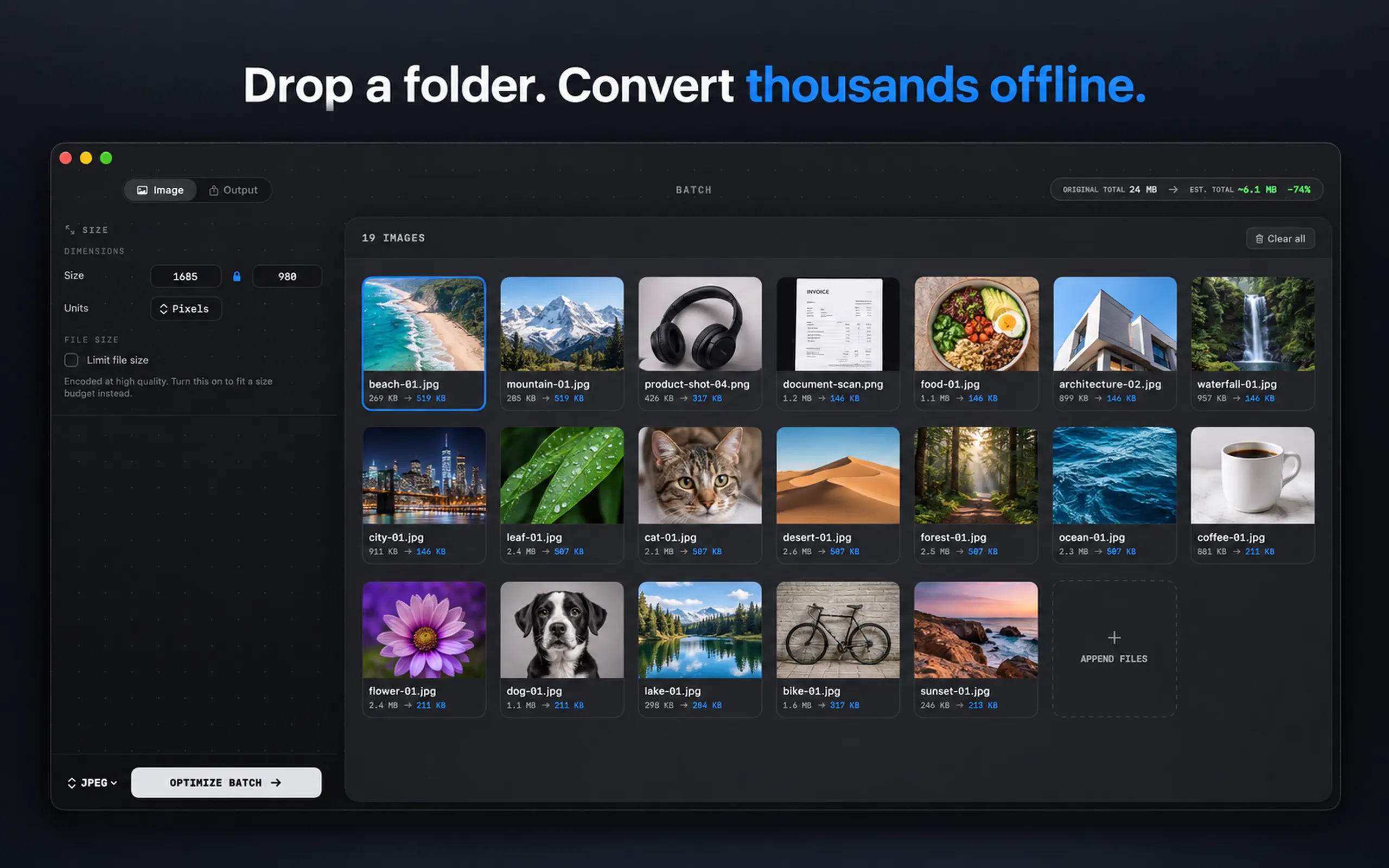
When a whole folder of photos has to go out without its metadata, Image Converter, the Mac converter DrisH builds at DRISH LABS, strips EXIF metadata with one toggle while it converts or resizes a batch, from a handful of files to thousands in one pass. It also has a Strip Image Metadata action in the Shortcuts app, so the step can sit inside an automation you already run, and a Finder Quick Action for converting from a right-click. It reads more than 30 formats, HEIC and RAW among them, and nothing is uploaded.
Its listing describes removing metadata, not viewing it, so look at a photo in Preview first if you need to know what is there. It is $8.99, one purchase on the Mac App Store, and needs macOS 15 or later.
Which way should you use?
- See what one photo reveals: Preview's Inspector, More Info.
- Remove the location from one photo: Preview's Remove Location Info.
- Send photos from your library without their location: Photos' export, with Location Information off.
- Remove everything, scripted: ExifTool.
- A few clean copies, nothing to install: the free Image Format Converter.
- A folder, again and again: Image Converter's metadata toggle or its Shortcuts action.
FAQ
How do I check a photo's metadata on a Mac?
Open it in Preview, choose Tools › Show Inspector and click the More Info tab. It shows the camera, the settings, the date and, on the GPS tab, the location if the photo has one.
How do I remove the location from a photo on a Mac?
In Preview's Inspector, open More Info, then the GPS tab, and click Remove Location Info. For photos in the Photos app, export them with Location Information turned off.
Does Remove Location Info remove all the metadata?
No. It removes the location only; the camera model, settings and date stay. To strip everything, use ExifTool's -all= option or a converter that drops metadata.
Can I strip EXIF data from many photos at once on a Mac?
Yes. ExifTool does it for free from Terminal, the Image Format Converter on this site does it for a few photos in the browser, and Image Converter does it for a whole folder with one toggle.
Does converting a photo remove its metadata?
It depends on the tool. Re-encoding in a browser canvas, as this site's converter does, keeps only the pixels. Other converters may copy the metadata across, so check the result in Preview.
Is it safe to share a photo with its metadata?
It can tell people where and when it was taken, and on what. If the location is your home, remove it before you post or send the original file.