Every price, and every feature of an app from another developer, comes from that developer's own page or Mac App Store listing (US store), read on 24 November 2026; Apple's steps come from its support pages. Prices change, so check before you buy.
The verdict
| App | Price | Runs on | The difference that matters |
|---|---|---|---|
| Preview and Photos | Free, built in | Mac | Export to JPEG, PNG, HEIC or TIFF; fine for a few images |
| Finder's Convert Image | Free, built in | Mac | Control-click a selection for JPEG or PNG copies |
sips in Terminal | Free, built in | Mac | Scriptable, with resizing; writes JPEG, PNG, HEIC, AVIF and TIFF, but not WebP |
| XnConvert | Free for private use; company licence from €15 | Mac, Windows, Linux | 500+ formats in, 80+ out, over 80 batch actions |
| ImageOptim | Free, open source | Mac | Shrinks files and removes metadata; it doesn't change the format |
| Image Converter | $8.99 once | Mac | Target file size, a batch into one PDF or GIF, Finder and Shortcuts actions |
| PhotoBulk | $9.99 once | Mac | Convert, resize, rename and watermark in one batch |
| Permute | $14.99 once | Mac | Video, audio, images and PDFs in one app |
| Retrobatch Pro | $24.99 on the Mac App Store | Mac | Chains steps into a node-based workflow |
| Squash 3 | $2.99 a month or $29.99 a year | Mac | Batch conversion with watermarks and filters |
| GraphicConverter 12 | $34.99 | Mac | An image browser and editor with over 200 file types in and over 80 formats out |
What are the best apps to convert PNG to JPG in 2026, and what do they cost?
For PNG to JPG you rarely need to pay: Preview, Finder's Convert Image and sips all do it free on any Mac. Pay only when the batch needs something else in the same pass.
- Free, built in: Preview (File›Export, Format: JPEG), Finder's Quick Actions›Convert Image for a selection, and
sips -s format jpeg image.png --out image.jpgin Terminal. - Free, for a big folder: XnConvert, free for private and educational use; a company licence starts at €15.
- Paid, one purchase: Image Converter $8.99 (target file size, one PDF from a batch), PhotoBulk $9.99 (watermarks and renaming), Permute $14.99 (video and audio too), Retrobatch Pro $24.99 on the Mac App Store (repeatable workflows), GraphicConverter 12 $34.99 (an editor as well).
- Subscription: Squash 3, $2.99 a month or $29.99 a year.
- Free trials: Permute's direct download and Retrobatch (7 days) both offer one.
One thing every converter does the same way: JPEG has no transparency, so a transparent PNG comes out with a solid background. If the transparency matters, keep the PNG, or use WebP.
Which apps convert HEIC to JPG on a Mac, and what do they cost?
The free ways cover most people: Preview, Photos' export, Finder's Convert Image and sips all write JPEG from HEIC. Two free apps do only that job: iMazing Converter (macOS 10.12 or later) and Sindre Sorhus's HEIC Converter (macOS 26 or later). For a folder that also needs resizing, a size limit or renaming, the paid apps in the table all read HEIC. The steps are in how to convert HEIC to JPG on a Mac.
What separates one image converter from another?
- What it can write. Reading formats is the easy part. macOS reads WebP, but WebP isn't among the export formats Apple lists for Preview or Photos, and
sipsstops with "Can't write format". If a website wants WebP or AVIF, you need one of the other tools here. - What else happens in the same pass. A batch often needs resizing, renaming or location data removed as well. Doing it all at once saves a second tool. How to see and remove photo metadata on a Mac covers the metadata part.
- Whether it can hit a size. An upload form that says "under 500 KB" is a different job from a quality slider, which means guessing and checking. How to reduce an image's file size on a Mac has the free ways.
- Once, or every week. Dropping in a folder suits a one-off. A job with several steps that comes back every week suits a saved workflow.
The options, one by one
Preview and Photos: already on your Mac
In Preview, open an image and choose File›Export, then pick a format. Apple lists HEIC, JPEG, JPEG-2000, OpenEXR, PDF, PNG and TIFF. For several images, open them in one window, select them in the sidebar and follow the same steps.
Photos does the same for pictures in your library. Select them, choose File›Export›Export [number] Photos, and set Photo Kind to JPEG, HEIC, TIFF or PNG.
- Price: free
- Pick it if: you have a few images and the formats above are enough.
Finder's Convert Image Quick Action
This one handles a batch with no app open. Select the images in Finder, Control-click, and choose Quick Actions›Convert Image (under More if it isn't listed). Choose JPEG or PNG and a size, and the copies appear next to the originals. Quick Actions›Create PDF in the same menu combines the selected files into one PDF, in the order you selected them.
- Price: free
- Pick it if: you want JPEGs or PNGs from a selection, or one PDF, and nothing else.
sips in Terminal
sips ships with macOS. This loop makes a JPEG of every HEIC photo in a folder, at quality 85, with the longest side capped at 1,600 pixels (tested on macOS 27.2):
mkdir -p convertedfor f in *.heic; do sips -s format jpeg -s formatOptions 85 -Z 1600 "$f" --out "converted/${f%.*}.jpg"; doneIf your files end in .HEIC, change the pattern to match. sips --formats lists what it writes, including JPEG, PNG, HEIC, AVIF, TIFF, GIF, BMP and PDF. WebP is read-only.
- Price: free
- Pick it if: you're happy in Terminal and want a job you can script.
WebP and AVIF for free: a browser tool and ImageMagick
The free Image Format Converter on this site converts batches to WebP, JPEG or PNG, and to AVIF where your browser can encode it. It runs in the tab, uploads nothing and strips metadata as it goes.
ImageMagick is free and works from Terminal. Install it with brew install imagemagick, then magick mogrify -format webp *.png writes a WebP for every PNG in the folder and leaves the PNGs alone. Mind the -format: without a new file suffix, mogrify overwrites the originals.
- Price: free
- Pick it if: you need WebP or AVIF now and nothing else. PNG to WebP has more on that conversion.
XnConvert: free, and it reads nearly everything
XnConvert, from XnSoft, is a batch converter. Its Mac App Store listing says "500+ formats in, 80+ out", WebP, AVIF, HEIC and JPEG-XL among them, and its website lists over 80 actions, such as resize, crop, colour adjustments and filters, which you set up once and apply to a whole folder. It can also hand its settings to NConvert, its command-line version.
- Price: free for private and educational use, including non-profits, according to its website; a company must buy a licence, from €15. Free on the Mac App Store; needs macOS 10.12 or later.
- Pick it if: you want a free batch tool that opens almost anything, including RAW files, and writes modern web formats.
ImageOptim: smaller files, same format
ImageOptim shrinks images rather than converting them. Its page says it compresses "without losing quality" and removes "private EXIF metadata from digital cameras, embedded thumbnails, comments, and unnecessary color profiles."
- Price: free and open source; needs macOS 11 or later
- Pick it if: the format is already right and the files are too big. Skip it if you need to change the format, because its page only describes making files smaller.
Image Converter: batches that have to fit a limit
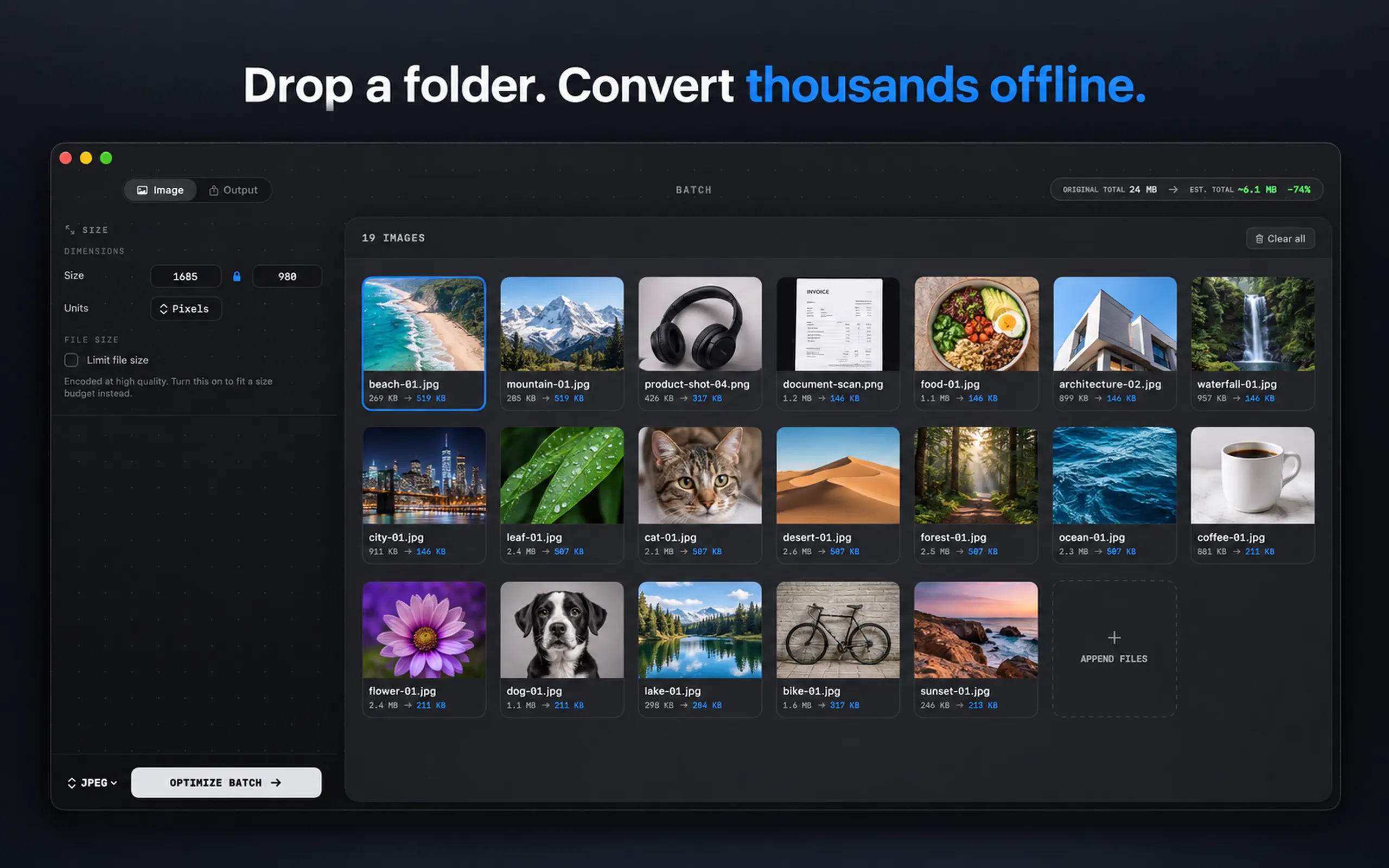
Image Converter is the Mac converter DrisH builds at DRISH LABS. Drop a folder, pick a format and convert. It reads more than 30 formats, including HEIC, RAW, PSD and SVG, and writes JPG, PNG, HEIC, WebP, TIFF, GIF, PDF, SVG, BMP, ICO and EPS. Set a target file size, such as 500 KB, and it encodes, measures and narrows in, lowering quality first and scaling down only if it has to, and it tells you when it can't get there. A batch can become one multi-page PDF, an animated GIF, a contact sheet or one long stitched image. It also resizes, crops, renames, adds a text or logo watermark, and strips EXIF metadata with one toggle. A Finder Quick Action and four Shortcuts actions bring it into your other work, and it can watch a folder for new images, though exporting stays your call. Nothing is uploaded.
- Price: $8.99, one purchase, on the Mac App Store; needs macOS 15 or later, on Apple Silicon or Intel
- Pick it if: your images have to fit an upload limit, or a batch has to end up as one file. Skip it if you need AVIF or JPEG XL output, which aren't on its list, or you convert video too.
Image Converter's page has the screenshots.
PhotoBulk: conversion as one step of a batch edit
PhotoBulk, from Eltima, is a bulk image editor. Its listing says it converts between JPEG, PNG, GIF, BMP, TIFF and HEIC, and the same batch can add watermarks, resize, optimise and rename. WebP isn't in the formats its listing names.
- Price: $9.99 on the Mac App Store; version 2.8; needs macOS 10.13 or later
- Pick it if: you're getting photos ready for a shop or a website, and watermarking and renaming are part of it.
Permute: images, video and audio
Permute, from Charlie Monroe Software, converts video, audio, images, PDFs and text in one app, with more than 100 formats supported.
- Price: $14.99, one purchase, direct (with a free trial) or on the Mac App Store; the direct licence includes codes for Permute 4 and Permute 3. Its site says Permute 4 needs macOS 26 on Apple Silicon, and the Permute 3 code covers macOS 11 to 15. Also on Setapp's subscription.
- Pick it if: you convert video and audio as well as images and want one app for all of it.
Retrobatch: a workflow instead of a dialog
Retrobatch, from Flying Meat, is a node-based batch processor: each operation is a node, and you connect them into a workflow. Its site says it converts to HEIC, JPEG, JPEG-XL, PDF, PNG, WebP or TIFF, and can write layered PSD or Acorn files. It comes in a regular edition with the most common nodes and a Pro edition with more; JavaScript scripting is in beta for Pro only.
- Price: Retrobatch Pro is $24.99 on the Mac App Store; the site offers a 7-day free trial and sells both editions directly (check its store for the current price). Needs macOS 12 or later.
- Pick it if: the same multi-step job comes back again and again, as it does when you prepare images for websites or apps.
Squash 3: filters and watermarks in the batch
Squash, from Realmac Software, batch converts and resizes images, and adds layered watermarks, filters, renaming and metadata removal or editing. It works with Apple Shortcuts. Its listing gives HEIC to JPG as the example and doesn't list its formats.
- Price: free to download, then a Monthly Plan at $2.99 or a 1-Year Plan at $29.99 on the Mac App Store, where the latest version is 3.2; needs macOS 12 or later
- Pick it if: you like its filters and a subscription suits you.
GraphicConverter 12: an editor that also batches
GraphicConverter, from Lemke Software, is an image browser and editor. Its listing says you "can open over 200 graphic file types and save images in over 80 formats", and its multiple conversion mode runs batches, with dozens of batch functions such as changing the size or the colour mode to CMYK.
- Price: $34.99 on the Mac App Store; version 12.5.4; needs macOS 10.13 or later
- Pick it if: you want a viewer, an editor and a batch converter in one app.
Also worth knowing
If HEIC is the only problem, two free apps do just that: iMazing Converter, from DigiDNA, and Sindre Sorhus's HEIC Converter, which needs macOS 26 or later.
Pixelmator Pro, now from Apple, is an image editor rather than a converter, but if you already own it, its Shortcuts actions can process many images at a time. It's $49.99 on the Mac App Store.
Which should you pick?
- A few images, now and then: Preview, or Finder's Convert Image.
- PNG or HEIC to JPG and nothing else: Finder's Convert Image, or iMazing Converter for HEIC.
- A big folder, for free: XnConvert, with a licence if it's for a company.
- Images for a website: the free Image Format Converter for a few, XnConvert for a lot.
- Files that must fit a size limit, or a batch that must end up as one PDF, for a one-time $8.99: Image Converter.
- The right format, but files too large: ImageOptim.
- Photos that also need watermarks and new names: PhotoBulk.
- Video and audio as well: Permute.
- The same multi-step job every week: Retrobatch.
FAQ
What is the best image converter for Mac?
It depends on the job. For a few images, Preview and Finder's Convert Image are already on your Mac. For big folders for free, XnConvert. For file-size limits and combining a batch into one PDF, Image Converter. For a repeated multi-step job, Retrobatch.
What is the best free app to convert PNG to JPG on a Mac?
The one already installed: Preview's File › Export or Finder's Convert Image Quick Action. For a large folder with resizing or renaming, XnConvert is free for private use.
How do I batch convert images on a Mac for free?
Select the images in Finder, Control-click, and choose Quick Actions, then Convert Image. For more formats and options, use XnConvert, or a sips loop in Terminal.
Can a Mac convert images to WebP without extra software?
Not with its own tools. macOS reads WebP, but sips refuses to write it, and it isn't among the export formats Apple lists for Preview or Photos. A browser tool, XnConvert or ImageMagick will do it for free.
Is XnConvert really free?
For private and educational use, including non-profits, yes. Its website says a company must buy a licence, from €15.
Does ImageOptim convert images to another format?
Its page only describes making files smaller and removing metadata, so use a converter to change the format.
Can I convert images on a Mac without uploading them?
Yes. Preview, Photos, sips, XnConvert and Image Converter all run on your Mac, and the Image Format Converter on this site works inside the browser tab.