Every price and feature below comes from the developer's own page or App Store listing, read on 31 October 2026. Prices change, so check before you buy.
The verdict
| App | Price | The screen while locked | The difference that matters |
|---|---|---|---|
| KeyboardCleanTool | Free | Darkened on every display | Can lock the trackpad and mouse too; unlock by holding a mouse or trackpad button |
| KeyBlock | $4.99 once | Covered by the lock view | No permissions at all; auto-unlock after 1 to 60 minutes; an emergency hotkey |
| Cats Lock | $4.99 once | A lock screen, or untouched with Stealth Lock | ⌘L from any app; optional extras such as Smart Detect need Accessibility |
| PawGuard | $0.99 a month, $2.99 a year or $4.99 once | Your apps stay visible | Blocks clicks as well as keys while your windows stay on screen |
| Clean Keyboard | $1.99 once | A full-screen cleaning session | Timed sessions with a countdown; Esc ends them |
| Slow Keys, Karabiner-Elements | Free | Untouched | Slow Keys ignores quick presses; Karabiner can switch off the built-in keyboard |
What separates one keyboard lock from another
- Whether you still see the screen. Cleaning tools cover or darken the display, which is right for wiping keys and wrong for a film, a call or a long export. Two apps here lock while your windows stay visible.
- How it unlocks. A lock should be easy for you to undo and hard for a paw to undo: a timer, a key combination nobody presses by accident, or a held mouse button.
- Whether it blocks clicks too. A cat on the keys needs a keyboard lock. A toddler at the laptop also clicks, so the trackpad matters.
- What it asks for. Some locks need Accessibility permission in System Settings; some need none.
The options, one by one
KeyboardCleanTool: free, for cleaning
KeyboardCleanTool, from folivora.AI, locks the keyboard, including the modifier keys and the Touch Bar, and can lock the trackpad and mouse as well. Version 8 darkens every screen so smudges show up, keeps the display awake, and can unlock itself on a timer; otherwise you unlock by pressing and holding a trackpad or mouse button for a few seconds. There is deliberately no keyboard shortcut to unlock. It is a direct download rather than a Mac App Store app, and needs macOS 13 or later.
- Price: free
- Pick it if: you want to wipe the keys and see the dirt. Skip it if you need to see what's on the screen while it's locked.
KeyBlock: no permissions, and it always ends
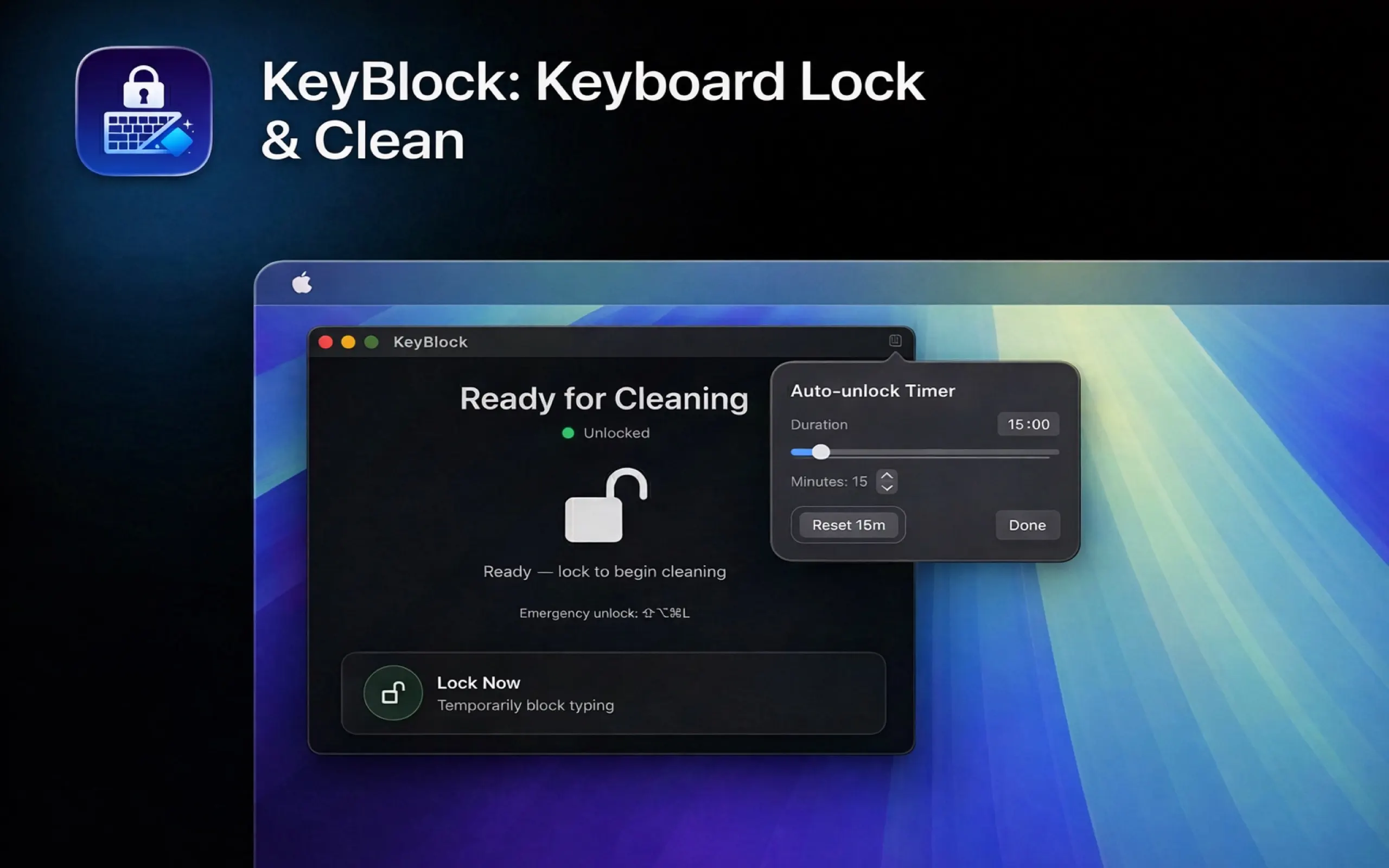
KeyBlock is the keyboard lock DrisH builds at DRISH LABS. One click in the menu bar opens a full-screen lock view, and every keystroke is intercepted and thrown away until the auto-unlock timer (1 to 60 minutes) runs out or you press Shift-Option-Command-L. The mouse and trackpad keep working. It requests no system permissions at all, neither Input Monitoring nor Accessibility, and quitting it, even with Force Quit, returns the keyboard at once.
- Price: $4.99, one purchase, on the Mac App Store; needs macOS 15.1 or later
- Pick it if: you want a lock that asks for nothing and can't get stuck on. Skip it if you need the picture, because the lock view fills the screen, or you need clicks blocked too.
KeyBlock's page has the screenshots.
Cats Lock: a shortcut and a stealth mode
Cats Lock blocks every key when you press ⌘L in any app (you can record a different shortcut), behind a lock screen you can customise, down to a cat drawn to look like yours. Its Stealth Lock blocks the keyboard with no overlay and no sound, for meetings and films, and can leave the trackpad working. Optional extras block the function row, lock only a MacBook's built-in keyboard while an external one is in use, or lock automatically when Smart Detect senses keyboard chaos; those ask for Accessibility permission, while the core lock needs none. It unlocks itself when the screen goes to sleep.
- Price: $4.99 on the Mac App Store; needs macOS 13.1 or later
- Pick it if: a cat crosses the keys while you watch or present, and you want the screen left alone.
PawGuard: your windows stay visible
PawGuard is a menu bar app that locks the keyboard and blocks ordinary clicks, dragging and scrolling, while the apps underneath stay visible and keep running, in a window or in full screen. Pointer movement can be locked too. Command-Shift-U is the emergency unlock, alongside a key combination you choose. It doesn't ask for Accessibility access, and its listing says it does not promise to block function keys, media keys or Mission Control.
- Price: free to download with a 3-day free trial, then $0.99 a month, $2.99 a year, or $4.99 once for lifetime access; needs macOS 14 or later
- Pick it if: the screen has to stay visible while nobody, furry or small, can type or click.
Clean Keyboard: timed cleaning sessions
Clean Keyboard opens a full-screen cleaning session across your displays for 30 seconds, 1 minute, 2 minutes, a custom length or until you stop it, with a countdown. You end it with the on-screen button, Esc or Command-Period, and it requests no Input Monitoring permission. Its listing notes that macOS system shortcuts stay available while it runs.
- Price: $1.99 on the Mac App Store; needs macOS 13.1 or later
- Pick it if: you clean the keyboard regularly and want a countdown. Skip it if a cat or a child is the problem: one press of Esc ends the session.
Also on the Mac App Store, Keyboard Cleaning Lock blocks keys, clicks and trackpad gestures behind a dimmed overlay on every display, unlocks when you hold four keys together, and has an auto-unlock from 1 minute to 7 days. It is free for a week, then $0.99 once.
Free settings and tools
- Slow Keys, in System Settings › Accessibility › Keyboard, makes the Mac ignore quick key presses, so a paw crossing the keyboard mostly doesn't type.
- Karabiner-Elements, free and open source, can switch off the built-in keyboard while an external keyboard is connected.
- Keyboard Cleaning Mode on this site swallows keys in a browser page while you wipe them, with a timer and the mouse as the way out.
The steps are in how to clean your Mac keyboard without shutting it down and how to lock your Mac keyboard but not the screen.
Which to pick
- Wiping the keys: KeyboardCleanTool, free. KeyBlock if you'd rather have a Mac App Store app that asks for no permissions and ends on a timer.
- A cat while you watch, work or present: PawGuard, or Cats Lock's Stealth Lock.
- A toddler at the laptop: a lock that blocks clicks as well as keys, such as PawGuard, or KeyboardCleanTool with its trackpad and mouse lock on. KeyBlock leaves the trackpad working.
- An external keyboard on top of the laptop: Cats Lock's built-in keyboard lock, or Karabiner-Elements for free.
- Now and then: the free Keyboard Cleaning Mode in a browser tab.
FAQ
What is the best app to lock the keyboard on a Mac?
For cleaning, the free KeyboardCleanTool. For a lock that needs no permissions and ends on a timer, KeyBlock. To keep the screen visible while the keyboard is locked, PawGuard or Cats Lock's Stealth Lock.
Can I lock my Mac's keyboard without covering the screen?
Yes, with an app. PawGuard locks keys and clicks while your windows stay visible, and Cats Lock's Stealth Lock blocks the keyboard with no overlay. macOS itself has no such switch.
Is KeyboardCleanTool free?
Yes. It is a free direct download from folivora.AI, and the current version needs macOS 13 or later.
Do keyboard lock apps need special permissions?
Some do. KeyBlock and Cats Lock's core lock ask for none, and PawGuard doesn't ask for Accessibility. Cats Lock's optional extras need Accessibility permission.
How do I get out of a keyboard lock?
Each app has a way out: KeyBlock's Shift-Option-Command-L or its timer, PawGuard's Command-Shift-U, Cats Lock's shortcut, and a held mouse or trackpad button in KeyboardCleanTool. With KeyBlock, quitting the app, even with Force Quit, returns the keyboard straight away.