You can still get close for free: make the keys ignore quick taps with Slow Keys, switch the built-in keyboard off with Karabiner-Elements while an external one is plugged in, or move the picture to a TV and close the lid. Below is how each one works, what it doesn't stop, and where a lock app fits.
Why the obvious answers don't work
- Lock Screen (Control-Command-Q) covers whatever was playing with the login window, and its password field still takes any keys a small hand presses.
- Sleep stops the film, and the first key pressed wakes the Mac.
- Keyboard cleaning tools are built to take over the display. KeyboardCleanTool, the free app from folivora.AI, darkens every screen in version 8, the current one at the time of writing, so smudges show up. The Keyboard Cleaning Mode on this site is a browser page that goes full screen. Both are right for wiping keys and wrong for watching something.
If cleaning is the actual job, the cleaning guide covers it. The rest of this page is about keeping the picture.
Slow Keys: make quick presses not count
Slow Keys is an accessibility setting built into macOS. It adds a delay between pressing a key and the Mac accepting it, so a key has to be held down before it registers. A paw walking across the keyboard, or a quick slap, mostly doesn't.
- Choose Apple menu›System Settings, click Accessibility in the sidebar, then click Keyboard.
- Turn on Slow Keys.
- Click the Info button beside it and drag the Acceptance delay slider towards the long end.
To switch it on and off faster next time, press Option-Command-F5 to open the Accessibility Shortcuts panel (on a Mac with Touch ID, pressing Touch ID three times quickly opens it too). If you pick only Slow Keys under System Settings›Accessibility›Shortcut, the shortcut toggles it straight away.
What it doesn't stop: a key held down long enough still counts, and a toddler leaning on the keyboard will hold keys down. It also slows your own typing, so turn it off when the film ends.
Karabiner-Elements: switch off the built-in keyboard
Karabiner-Elements is a free, open-source keyboard customiser for macOS. In its Devices tab there is a setting, Disable the built-in keyboard while this device is connected, that you turn on for a chosen external keyboard. While that keyboard is plugged in or connected, the MacBook's own keys do nothing; the screen and trackpad carry on as normal.
For a film, that means: connect any external keyboard, put it somewhere out of reach, and the laptop's keys are dead until you disconnect it.
The cost is the setup. Karabiner installs a driver and background services and needs input permissions in System Settings, which is a lot of machinery if all you want is a quiet evening. It pays off if you'd use its key remapping anyway.
Put the picture on a TV and close the lid
If there's a TV or monitor nearby, the built-in keyboard can go under the lid. A MacBook keeps running with its lid closed and an external display connected, as long as, in Apple's words, the Mac is connected to power and using an external keyboard and mouse.
Connect the TV, close the lid, and play the film on the TV. The laptop's keyboard is physically covered. The external keyboard is still live, so keep it out of reach too.
If it can be an iPad or iPhone instead
For a child watching something, an iPad or iPhone has the feature a Mac doesn't: Guided Access. It locks the device to one app and can ignore touches, block the hardware buttons and set a time limit for the session.
- Go to Settings›Accessibility›Guided Access and turn it on. Set a passcode.
- Open the video app, then triple-click the side button (top button on iPad, Home button on older models) and tap Start.
- Triple-click again, enter the passcode and tap End to finish.
Where KeyBlock fits, and where it doesn't
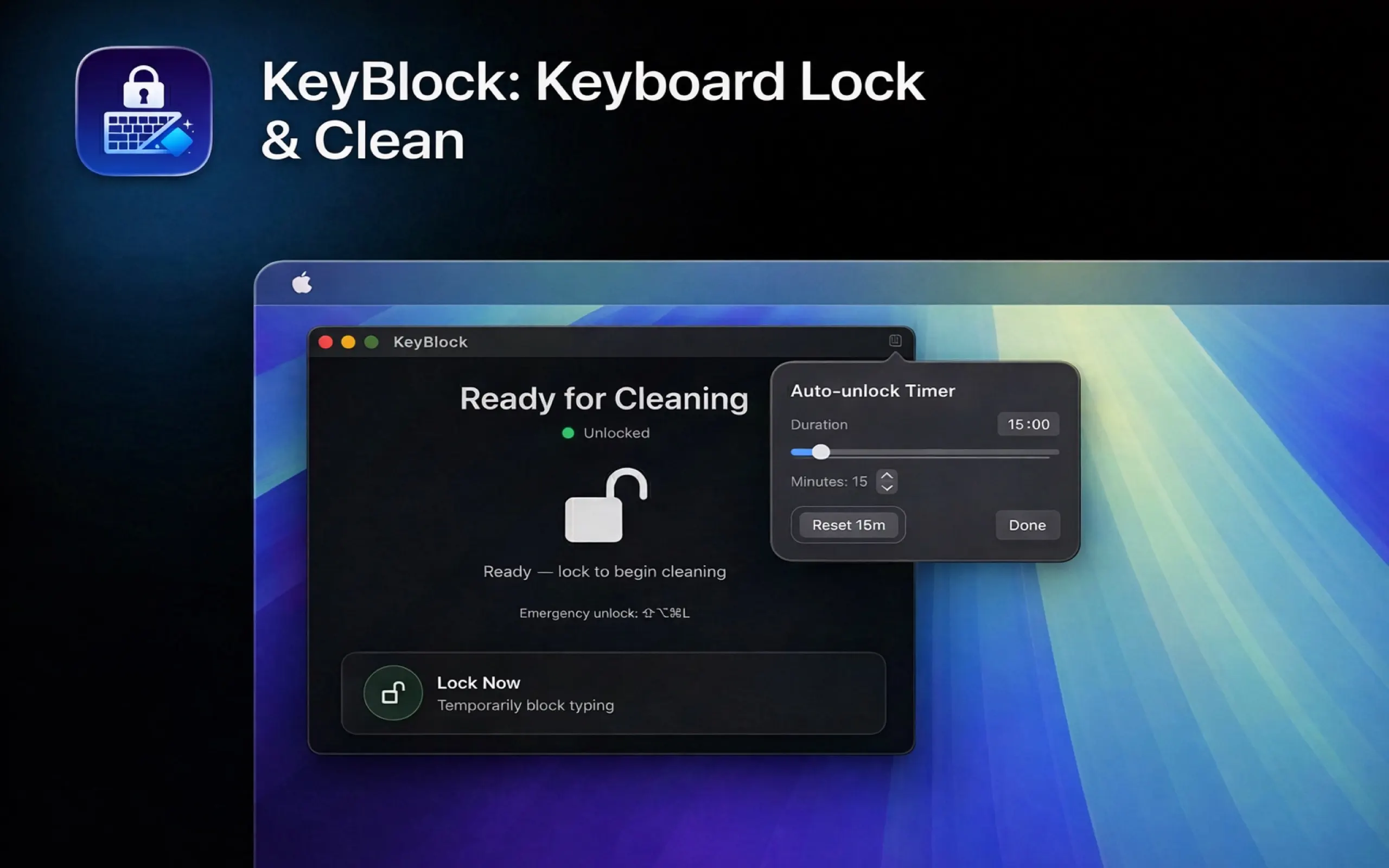
KeyBlock is the DRISH LABS app for pausing the keyboard on a Mac. One click from the menu bar and every keystroke is intercepted and thrown away until you unlock, with an auto-unlock timer from 1 to 60 minutes and an emergency hotkey, Shift-Option-Command-L. It asks for no permissions, and quitting it returns the keyboard straight away.
Its limit matters for this search: KeyBlock's lock view fills the screen. It is the right tool when the keys need to be safe and you don't need the picture: a cat on the desk while you step away, a toddler banging on a laptop you've put down, or wiping the keys. It is not a way to watch a film with the keyboard locked. For that, use Slow Keys, Karabiner or the lid trick above.
At the time of writing it is $4.99 on the Mac App Store, a one-time purchase, and needs macOS 15.1 or later.
Which to use
- A cat that walks across the keys during a film: Slow Keys with a long acceptance delay.
- A toddler who presses everything: a TV with the lid closed, or an iPad with Guided Access.
- You already own an external keyboard: Karabiner-Elements, with the keyboard out of reach.
- You don't need the screen, only safe keys: a lock app such as KeyBlock, with a timer so it ends on its own.
FAQ
Can I lock my Mac keyboard but keep the screen on?
There is no built-in switch for it. The closest free options are Slow Keys, which ignores quick key presses, and Karabiner-Elements, which can disable the built-in keyboard while an external keyboard is connected.
Does locking the screen stop a movie being interrupted?
Control-Command-Q locks your session, but the lock screen covers the movie, and its password field still accepts keystrokes.
How do I stop my cat typing on my MacBook?
Turn on Slow Keys in System Settings › Accessibility › Keyboard and set a long acceptance delay, so brief paw presses don't register. If you're leaving the Mac, a keyboard lock app with a timer covers it completely.
Can I lock the keyboard on an iPad so a child can watch a video?
Yes. Guided Access, in Settings › Accessibility, locks the iPad to one app and can ignore touches and block the buttons until you enter a passcode.
Does KeyBlock let me watch a video while the keyboard is locked?
No. Its lock view takes over the screen. It's for keeping the keys safe when you don't need to see what's on the display.