Apple's own advice is to shut a MacBook down and unplug it before you clean it with a damp cloth, and that is still the right way to do a proper clean. But when you only want a quick dry wipe, to brush out crumbs, or to keep a cat off the keys while the screen stays on, you need a way to stop keystrokes reaching your work. Below is every free way to do that, and where a paid app is worth it.
First, what Apple actually says
Apple's cleaning guide for MacBook, MacBook Pro and MacBook Air says to "first shut down your computer and unplug the power adapter", then use "a damp, soft, lint-free cloth", avoid getting moisture in any openings, and "don't spray liquid directly on the computer." For disinfecting, Apple allows a 70 percent isopropyl alcohol wipe, a 75 percent ethyl alcohol wipe or Clorox Disinfecting Wipes on hard, nonporous surfaces such as the keyboard.
For crumbs under the keys, Apple's keyboard article describes compressed air: hold the Mac "at a 75-degree angle, so it's not quite vertical", spray from left to right, then turn the laptop onto its right side and repeat, then its left side. Use the straw, keep it about half an inch from the keys, and don't turn the can upside down.
So: anything wet, shut down. Everything below is for the dry jobs where you want the screen on.
Lock the screen
Press Control-Command-Q. Your session is locked and nothing you wipe across the keys will reach an open document.
The catch: the lock screen has a password field, and it takes keystrokes. Wipe a cloth across the keyboard and you are typing into it. It is harmless (a wrong password is just a wrong password), but you will see it fill up, and you lose the screen you were looking at.
Put the Mac to sleep
Press Option-Command-Power button, or choose Sleep from the Apple menu. A sleeping Mac ignores the keyboard until you wake it, and that is the problem: the first key you touch wakes it up. Sleep works for a single wipe in one direction. It does not work for a proper going-over.
Use an external keyboard and leave the built-in one alone
If you work with an external keyboard, the job is easier: unplug it (or switch it off) and clean it while the Mac carries on. For the MacBook's built-in keyboard, the free tool below can switch it off while an external keyboard is connected.
KeyboardCleanTool (free)
KeyboardCleanTool is a free Mac app from folivora.AI, the makers of BetterTouchTool. In their words, it "locks your keyboard (including modifier keys and the Touch Bar) and optionally trackpad & mouse, so you can wipe them without producing any input." You unlock it by pressing and holding a trackpad or mouse button for a few seconds. The current version needs macOS 13 or later; an older release covers macOS 10.11 to 12.
It does the cleaning job well, and it costs nothing. For a lot of people it is all they will ever need.
Karabiner-Elements (free)
Karabiner-Elements is a free keyboard customiser for macOS. In its Devices tab there is a setting, "Disable the built-in keyboard while this device is connected", which turns off the MacBook's own keys whenever a chosen external keyboard is plugged in.
It is powerful, and it is a lot of machinery for this one job: installing it means allowing background services, granting Accessibility (which also covers Input Monitoring) and approving a driver extension for its virtual keyboard. Worth it if you want key remapping anyway; heavy if all you want is two minutes of quiet keys.
Keyboard Cleaning Mode, in your browser (free)
This site has a free Keyboard Cleaning Mode. Press start and a fullscreen browser tab swallows every key you press, shows you that it is doing so, and ends on a timer, on a click, or when you hold Esc for two seconds.
The limit is the browser. In Chrome, Edge and other Chromium browsers, fullscreen plus the Keyboard Lock API catches most system shortcuts too. Safari and Firefox don't support that API, so shortcuts like Command-Tab and Command-Space can still reach macOS. Fine for a wipe with care; not airtight.
KeyBlock: a pause that covers the whole Mac
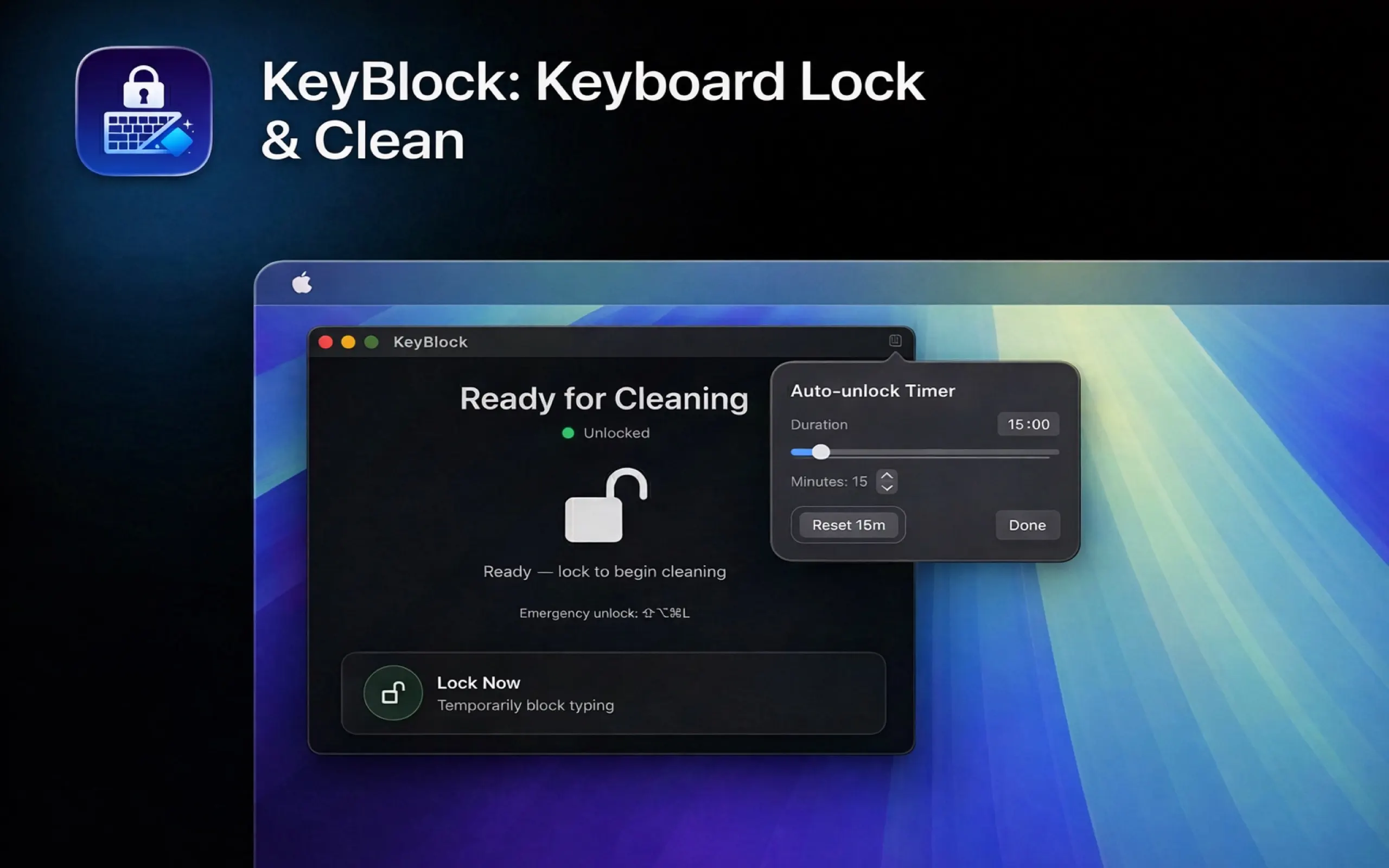
KeyBlock is the Mac app made for exactly this. One click from the menu bar opens a full-screen lock view, and every keystroke is intercepted and discarded until you are done. The mouse and trackpad keep working, so it pauses the keyboard, not your session.
- Auto-unlock timer from 1 to 60 minutes, so the lock can never get stuck on
- Emergency hotkey Shift-Option-Command-L, always available
- No permissions: since version 2.1 it asks for no Input Monitoring and no Accessibility access
- Quitting it returns the keyboard immediately, whether through Force Quit or a restart
- Offline: it never reads, records or sends keystrokes
At the time of writing it is $4.99 on the Mac App Store, a one-time purchase, and it needs macOS 15.1 or later.
Pick KeyboardCleanTool if you want free and don't mind holding a mouse button to unlock. Pick KeyBlock if you want a timer, a hotkey and nothing to grant.
Which to use
- A deep clean with a damp cloth: shut down and unplug, as Apple says.
- A quick dry wipe or crumbs: pause the keyboard and keep working.
- Protecting the keys from a child or a pet for a few minutes: pause the keyboard with a timer, so the lock ends on its own.
FAQ
Can I turn off my MacBook's keyboard?
Not with a built-in setting. Shut the Mac down, or use an app that pauses the keyboard while the rest of the Mac keeps running.
Should I shut down my MacBook before cleaning the keyboard?
For anything with a damp cloth or a disinfecting wipe, yes. That is Apple's guidance. A lock tool is for dry jobs like dusting, crumbs or a quick wipe while you need the screen on.
Does Control-Command-Q stop the keyboard typing?
It locks your session, so nothing reaches your apps, but the password field on the lock screen still takes the keys you wipe across.
Is there a free way to lock a Mac keyboard for cleaning?
Yes. KeyboardCleanTool from folivora.AI is free, and so is the Keyboard Cleaning Mode on this site, which works in a fullscreen browser tab.
Can I clean the keys with compressed air?
Apple describes it for MacBook keyboards: hold the Mac at about 75 degrees, spray left to right, then repeat with the laptop on its right side and its left side, keeping the straw about half an inch away.
Does KeyBlock need Accessibility or Input Monitoring permission?
No. It uses a full-screen lock window instead, so it requests no system permissions.