Below is every free way to do it, what the person receiving the file has to do, and the case where an app is faster.
Why Share Contact isn't the answer
Share Contact on a contact card sends that one card. Apple's steps are: open the contact, tap Share Contact, choose the fields to include, then pick Messages, Mail or another option. It's the right tool for one or two people. For ten, it means ten messages, and the other person saves ten cards.
The way to send many in one go is a single vCard (.vcf) file that holds all of them. The iPhone makes that file from a list.
Method 1Export a list in Contacts (free, on the iPhone)
Apple documents this in the iPhone User Guide under Export contacts:
- Open Contacts and go to your Lists (the button at the top left).
- If the people you want to send aren't in a list yet, tap Add List, name it, and add them.
- Touch and hold the list, tap Export, select the fields you want to include, then confirm.
- Choose how to send it, such as Messages, Mail or AirDrop.
The other person gets one file with every contact from the list inside it.
Two things worth doing before you tap Export:
- Check the fields. The export asks which fields to include. If your cards hold private notes, a home address or birthdays you'd rather not hand on, turn those fields off.
- Send everyone with the list you already have. Your contacts are already in a list that holds all of them, shown at the top of the Lists screen (its name depends on your accounts). Touch and hold that one to export your whole address book as one file.
Method 2Export from iCloud.com on a computer (free)
If your contacts sync with iCloud, a computer gives you finer control over who goes in the file. According to Apple:
- Go to icloud.com/contacts and sign in.
- Select who to send:
- Some contacts: hold Command (Mac) or Control (Windows) and click each one.
- All contacts: use the menu at the top of the list and choose Select All Contacts.
- Open the menu on the right and choose Export vCard.
When you select more than one contact, iCloud exports a single vCard containing all of them. Attach it to an email, or put it in a shared folder. iCloud.com also lets you build a list by dragging contacts onto it in the sidebar, which you can then export from the iPhone with Method 1.
Method 3AirDrop, for someone in the same room
AirDrop is the quick way to deliver the file from Method 1 to someone nearby. Choose AirDrop in the share sheet after you tap Export. Apple's requirements: both devices within about 10 metres (30 feet) of each other, with Wi-Fi and Bluetooth turned on and AirDrop on. If you're not in each other's contacts, the other person sets AirDrop to Everyone for 10 Minutes in Control Center. On iOS 26.2 or later, if you're not in their contacts, an AirDrop code also appears on their iPhone; they read it out and you enter it to finish the transfer.
NameDrop (holding two iPhones together) only shares your own contact card, and only to add a new contact, not update one. It can't send other people's details.
What the other person does with the file
- On an iPhone: tap the
.vcfattachment in the email or message, and the iPhone offers to add the contacts. A file sent by AirDrop opens the same way. - If they already have some of these people: importing on top creates duplicates. Afterwards, Apple's fix is Contacts›View Duplicates (below My Card), then Merge All. That only catches cards with the same first and last name, so "Mum" and a full name on the same number stay separate.
- To clean the file before importing: the free vCard converter on this site merges
.vcffiles and removes duplicates by phone number or email, never by name. It runs in the browser and uploads nothing. It can also turn the file into a CSV for a spreadsheet.
Moving contacts to Android rather than sharing them? There's a separate guide for iPhone to Android.
When an app saves time
Everything above is free and works well for sending a file to someone anywhere. It gets fiddly when you're handing a lot of contacts to someone in person:
- Building the list first. Picking forty people for a colleague means making a list just to export it.
- Duplicates on the other side, when their phone already has half the same people.
- No internet, on a site visit or a plane, with no email or iCloud to lean on.
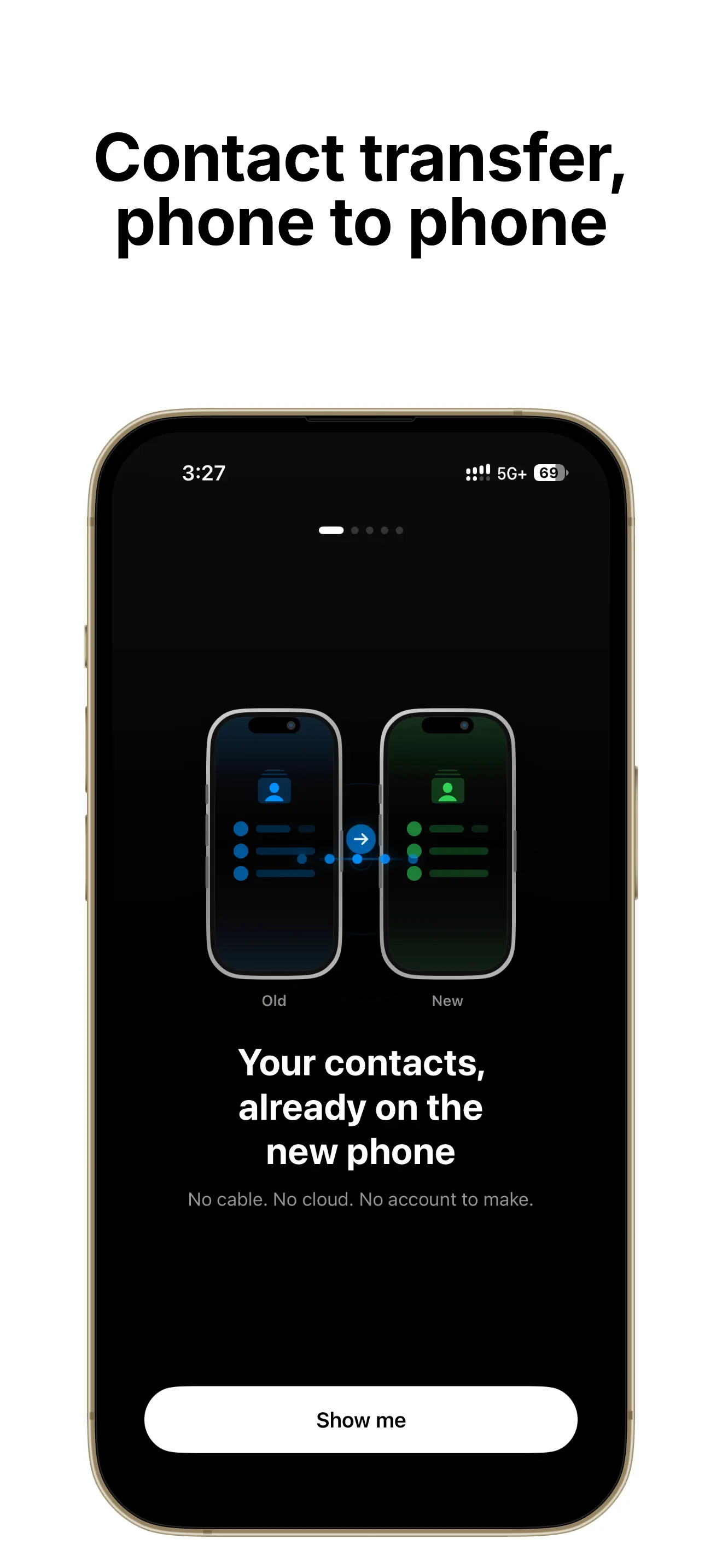
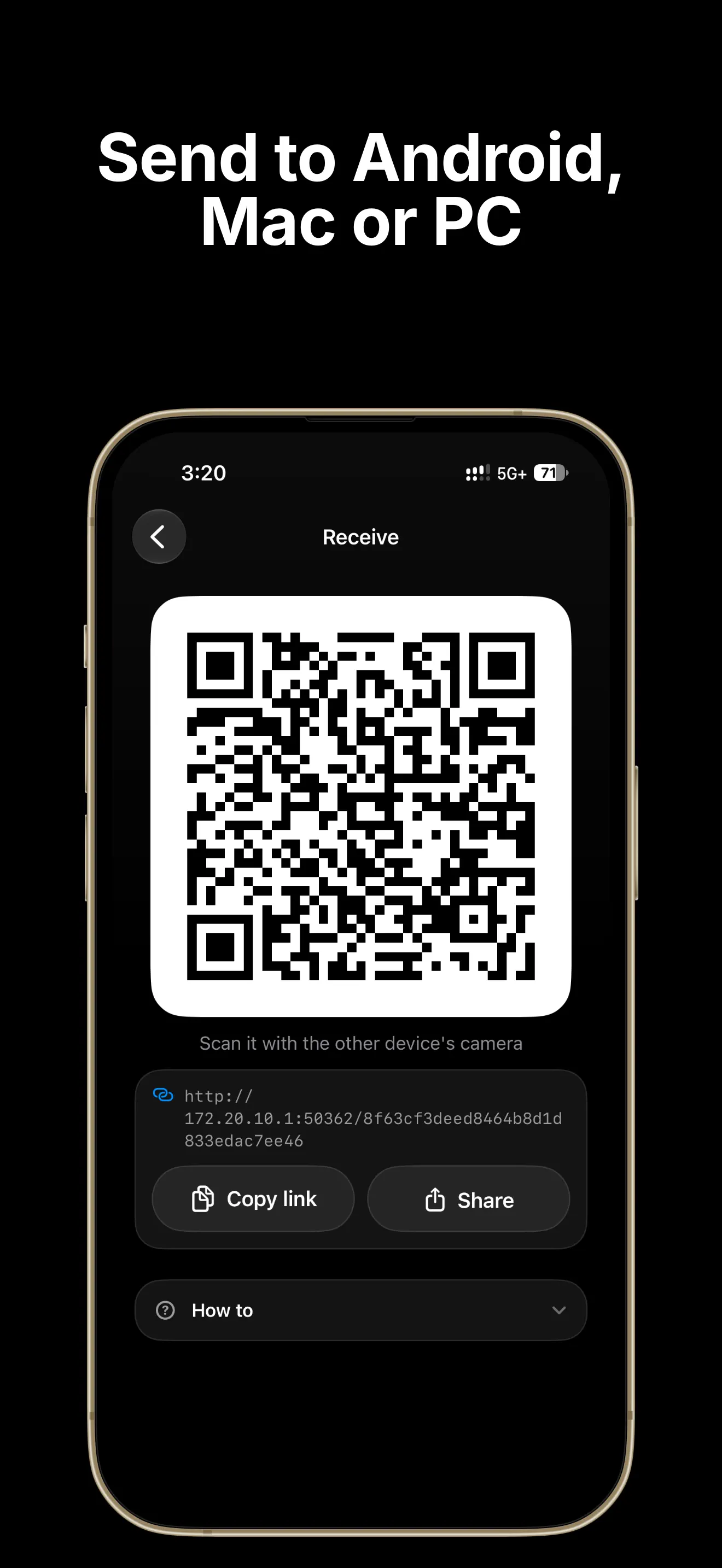
vMerge, the contact transfer app DrisH builds at DRISH LABS, sends contacts from one phone to another over local Wi-Fi or a personal hotspot. Tap Send, pick the contacts or take all of them, and another iPhone running vMerge on the same network shows up by itself, with no QR code. For anything else, such as an Android phone or a laptop, the other device scans a QR code and gets the contacts in a browser tab, with nothing to install. Contacts travel as standard vCards with photos, birthdays and custom fields, and before importing, the receiver sees which duplicates will be merged, matched by phone number rather than by name. Nothing passes through a server.
It has limits. Both devices have to be on the same network, so it's for people in the same place, not someone in another city; for that, the exported file is still the way. The automatic iPhone-to-iPhone route needs vMerge on both phones. It's free for up to 50 contacts per transfer with no time limit, and a one-time Lifetime purchase lifts the limit, with no subscription. It needs iOS 18 or later.
FAQ
Can I share multiple contacts at once on iPhone?
Yes. Put the contacts in a list in the Contacts app, touch and hold the list, tap Export, and send the single file by Messages, Mail or AirDrop.
How do I share all my contacts from my iPhone?
In Contacts, go to Lists, touch and hold the list that holds all your contacts, tap Export and send the file. On a computer, icloud.com/contacts can Select All Contacts and Export vCard.
Can I AirDrop multiple contacts?
Yes, as one file. Export a list in Contacts and choose AirDrop in the share sheet. Both devices need Wi-Fi and Bluetooth on and must be nearby.
What is a .vcf file?
A vCard, the standard file format for contact cards. One .vcf file can hold one contact or hundreds, and iPhones, Macs, Android phones and most email apps can read it.
Will the other person get duplicate contacts?
They can, if they already have some of the same people. On an iPhone, Contacts › View Duplicates › Merge All fixes same-name duplicates afterwards; cleaning the file by phone number first catches the rest.
Can I choose which details get shared?
Yes. Both Share Contact and Export ask which fields to include, so you can leave out notes, addresses or birthdays.