The harder cases are a phone on a different Apple Account, no iCloud, or only some of the contacts. Below is every free way to do it, and when an app saves time.
Method 1Quick Start, when setting up the new iPhone
Quick Start is Apple's way of setting up a new iPhone from your current one, and it brings your contacts with everything else. According to Apple:
- The old device needs iOS 11 or later, and Apple suggests updating both phones first.
- Connect the old phone to Wi-Fi, turn Bluetooth on, unlock it, then turn on the new phone and place it nearby. The old phone offers to set up the new one.
- You choose whether the data comes from iCloud (it downloads in the background, so you can use the phone sooner) or directly from the old phone (you wait for the transfer to finish on both).
- Keep both phones near each other and plugged in until the transfer is done.
It only runs during setup. If the new phone is already set up, use iCloud instead.
Method 2ICloud Contacts, when both phones use one Apple Account
If both iPhones are signed in to the same Apple Account, iCloud keeps one address book on both. On each phone:
- Open Settings and tap your name.
- Tap iCloud, then See All next to Saved to iCloud.
- Turn on Contacts. If you're asked whether to merge contacts already on the phone, choose Merge.
Give it a few minutes on Wi-Fi and the contacts appear on the other phone. Contacts stored only in an "On My iPhone" account don't sync through iCloud, which is the usual reason a few go missing.
Method 3Share a few contacts with AirDrop or Messages
For a handful of people, Contacts' own sharing is fastest:
- Open the contact.
- Tap Share Contact.
- Choose AirDrop to send it to a nearby iPhone, or Messages or Mail.
The other phone gets a card it can save with one tap. To swap your own details with someone in person, NameDrop does it by bringing the two iPhones close together (iOS 17 or later).
To send several people at once, export a list from Contacts as one file instead: how to share multiple contacts on iPhone has the steps.
Method 4Export a .vcf file from iCloud.com
This is the free way to move a whole address book to a phone on a different Apple Account:
- On a computer, go to icloud.com/contacts and sign in with the old phone's Apple Account.
- Choose Select All Contacts, then Export vCard. You get one
.vcffile with everyone in it. - Send the file to the new phone, for example by AirDrop, Mail or iCloud Drive, and open it. The iPhone offers to add all the contacts.
If the new phone already has some of the same people, importing on top creates duplicates. The free vCard converter on this site can merge .vcf files and remove duplicates by phone number before you import. It runs in your browser and uploads nothing.
When an app saves time
The free routes all go through Apple's cloud, through setup, or through a file you export and send by hand. An app helps when none of those fit:
- Different Apple Accounts, such as passing your contact list to a partner's or a colleague's iPhone.
- No iCloud at all, by choice or because the contacts are stored only on the phone.
- Duplicates, when the other phone already has half the same people.
- No internet, on a plane or anywhere without a connection.
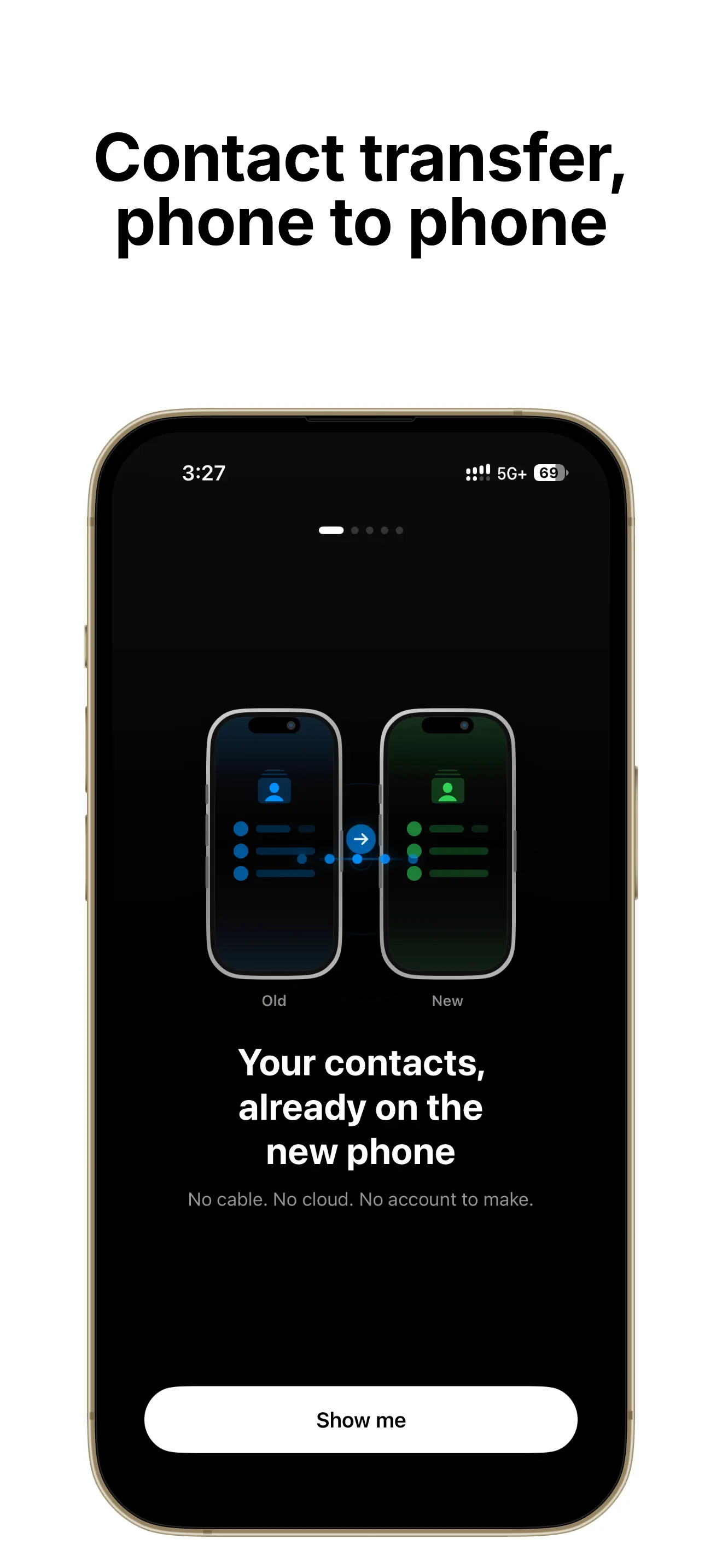
vMerge, the contact transfer app DrisH builds at DRISH LABS, sends contacts from one iPhone to another over local Wi-Fi or a personal hotspot. With the app open on both phones on the same network, they find each other: open Receive on one and tap it on the other. There's no QR code and no account, and nothing passes through a server. Contacts travel as standard vCards with their photos, birthdays and custom fields. Before importing, vMerge shows you which duplicates it will merge, matched by phone number rather than by name.
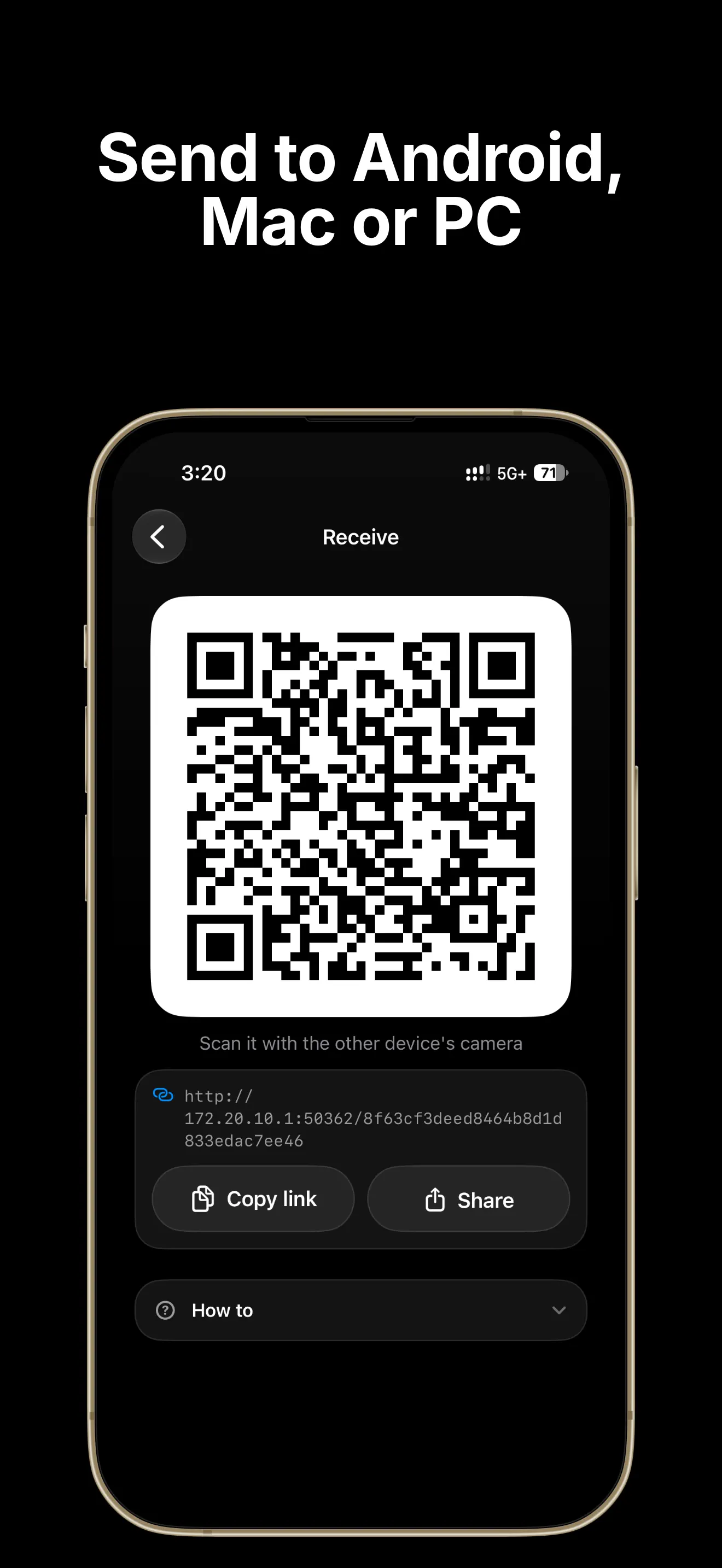
It's free for up to 50 contacts per transfer, with no time limit. A one-time Lifetime purchase removes the limit, with no subscription. It also sends to an Android phone or a computer: the other device scans a QR code and gets the contacts in a browser tab. It needs iOS 18 or later.
FAQ
How do I transfer all my contacts to a new iPhone?
Use Quick Start while setting up the new iPhone, or turn on Contacts in Settings › [your name] › iCloud on both phones if they share an Apple Account.
How do I transfer contacts to an iPhone with a different Apple Account?
Export a .vcf file of all your contacts from icloud.com/contacts and open it on the other iPhone, or send them over Wi-Fi with an app like vMerge.
Can I send all my contacts at once?
Yes, as one file. In the Contacts app, touch and hold a list and choose Export, then send the file by Messages or Mail. A single contact's Share Contact button sends only that one card.
Why didn't all my contacts move to the new iPhone?
Contacts stored only "On My iPhone" don't sync through iCloud, and contacts in another account, such as Gmail or Outlook, come across only once that account is added on the new phone.
How do I avoid duplicate contacts after a transfer?
Merge before importing, not after. Run the .vcf through a duplicate remover, or use a transfer app that shows the merge first. iOS can also find duplicates in Contacts and offer to merge them.