The rest of this guide is each method with its real steps, when it is the right one, and the problem every one of them can leave behind: duplicates.
Method 1Copy your data while you set up the Android phone
Google's Android help describes a copy step built into the setup of a new Android phone, and contacts are one of the things it moves. There are two ways to run it.
Wireless, with Google's Android Switch app on the iPhone:
- On the new Android phone, when it asks to copy data from another device, choose iPhone or iPad.
- On the iPhone, install the Android Switch app from the App Store (it needs iOS 15 or later) and scan the QR code the Android phone shows.
- Follow the prompts on both phones, choose what to copy, and keep the two phones next to each other until it finishes.
With a cable, connect the iPhone's charging cable to the new phone (you may need a USB-A to USB-C adapter), tap Trust on the iPhone, pick the data types you want and tap Copy.
Google's page lists what to do first: connect the iPhone to Wi-Fi, charge both phones, make sure the new phone has enough storage, and turn off iMessage on the iPhone, which it says you must do.
The catch is timing. This is a setup step. Google's page says that on Android 17 and newer you can skip it during setup and run the copy later from Settings›Accounts and backup; on earlier versions, plan to do it while the phone is new. If your Android phone is already set up and full of things you want to keep, use one of the next two methods instead.
Method 2Export a .vcf from iCloud and import it on the Android phone
On most iPhones, contacts live in iCloud. iCloud.com can export all of them as one vCard (.vcf) file, the standard format for contacts that Android reads directly.
Export from iCloud.com (Apple's iCloud User Guide notes you need a computer or a tablet for Contacts on iCloud.com, so borrow one for this step if you have to):
- Go to icloud.com/contacts and sign in with your Apple Account.
- Open the Actions menu at the top of the contacts list and choose Select All Contacts.
- Click the Share button and choose Export vCard. Everything you selected downloads as a single .vcf file.
Import on the Android phone, following Google's Contacts help:
- Get the file onto the phone: email it to yourself, or put it in Google Drive.
- Open the Contacts app, tap Organize at the bottom, then Import from file.
- If the phone has more than one account, choose the one to save the contacts to (your Google account, if you want them backed up there).
- Select the .vcf file.
If you would rather do the import on a computer, Google Contacts on the web has an Import option in the left-hand menu. Google's help says it imports up to 3,000 contacts at a time, so split a larger address book into several files first.
Be aware that emailing the file leaves a copy of your whole address book in that mailbox. Delete the email once the import is done.
Method 3Start saving to your Google account on the iPhone
If you are not switching phones today but plan to, you can make your contacts follow you by adding your Google account to the iPhone and turning on Contacts. Google's help lists the steps:
- Open Settings, tap Contacts (on recent iOS versions it is under Apps), then Add account, or Accounts if you have one already.
- Choose Google and sign in.
- Turn on Contacts in the list of things to sync, and tap Save.
Your Google contacts then appear on the iPhone, and when you sign in to the same Google account on an Android phone they appear there too.
What this does not do is move the contacts you already have. Contacts saved to iCloud stay in iCloud; adding a Google account does not copy them across. For those, use Method 2 once. After that, contacts you save to the Google account follow you to the new phone.
The problem they share: duplicates
None of these methods is a merge. If the Android phone already has some of the same people, from your Google account, a work account or an earlier attempt, you get two of them. And phones usually match duplicates by name, so "John Smith" and "Smith, John" on the same number stay as two entries.
If you have ended up with a .vcf full of repeats, or several files from several attempts, this site's free vCard and CSV contacts converter cleans it up in your browser before you import it. It merges several files into one and collapses duplicates by phone number and email address rather than by name, and nothing about your contacts is uploaded.
The faster way: vMerge
vMerge is DRISH LABS' contacts app for iPhone, and iPhone to Android is exactly the direction it handles. It moves contacts from the iPhone to another device over your local Wi-Fi or a personal hotspot, with no cable, no cloud and no account. As its App Store listing describes at the time of writing:
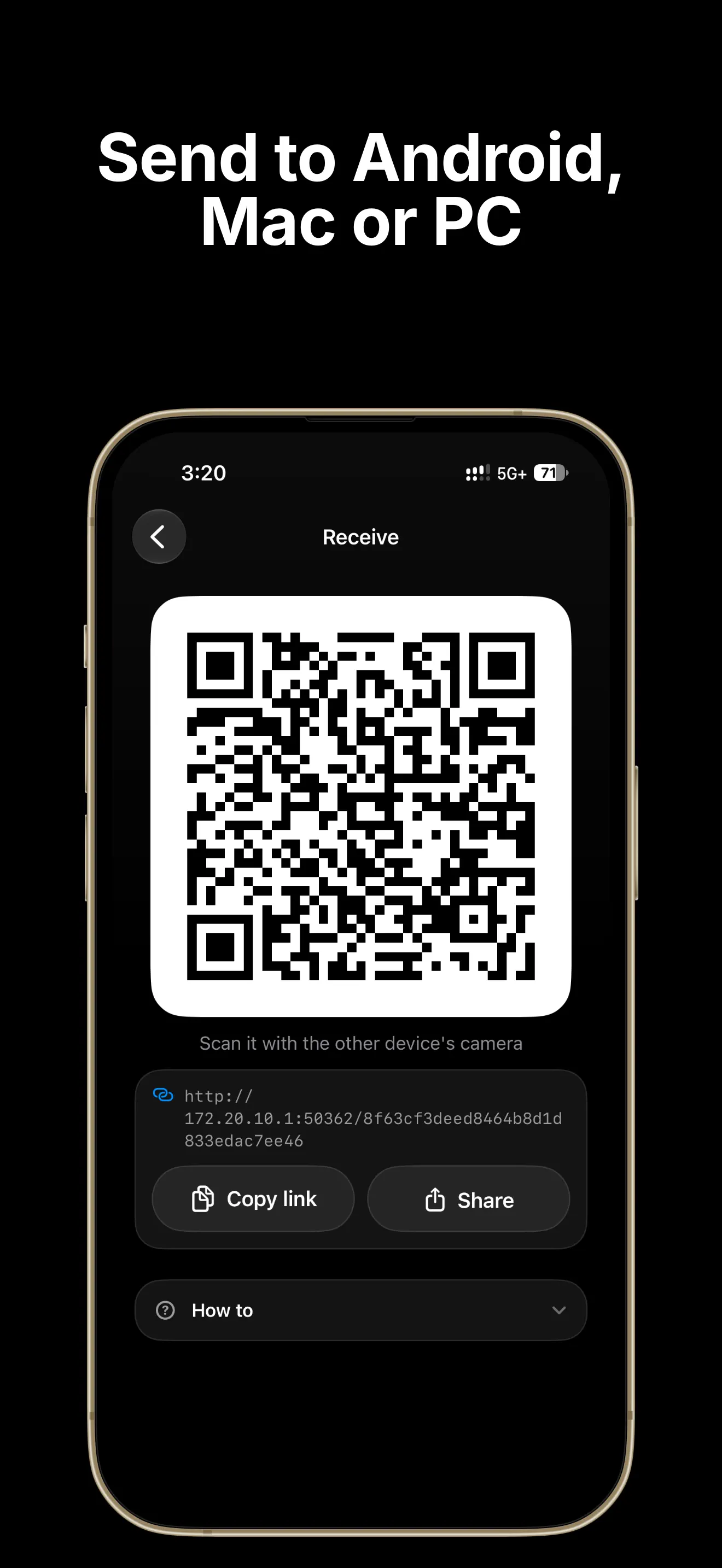
- The Android phone needs nothing installed. vMerge shows a QR code; point the Android phone's camera at it and a browser tab opens with the contacts ready, as a standard .vcf.
- No computer, no iCloud.com step. The contacts go straight from the iPhone you are holding, and you can send all of them or pick some.
- It works without the internet. Personal Hotspot turns the iPhone into its own small network if there is no Wi-Fi.
- Duplicates are merged by phone number when the receiving device runs vMerge (iPhone to iPhone), with a preview first. An Android phone receives the plain .vcf through its browser, so for a phone that already has contacts, the converter above is the way to clean the file first.
- Free for up to 50 contacts per transfer, with no time limit. A one-time Lifetime purchase lifts the limit; it is not a subscription.
If you are setting up a new Android phone and everything is in iCloud, Google's own copy step during setup is free and moves more than contacts, so start there. vMerge is the shorter path when the phone is already set up, when you want only some contacts, or when you would rather not export your address book through a computer and an email.
FAQ
Can I copy my iPhone contacts after the Android phone is already set up?
Yes. Export a .vcf from iCloud.com and import it in the Android Contacts app with Organize › Import from file. Google's help says Android 17 and newer can also run the copy step later from Settings › Accounts and backup.
Why did only some of my contacts come across?
Contacts can live in more than one place on an iPhone: iCloud, a Google account, a work account. An iCloud export only includes iCloud contacts, so check which accounts the iPhone's Contacts app is showing before you export.
Do I need to turn off iMessage before switching to Android?
Yes. Google's help on copying data from an iPhone says you must turn off iMessage on the iPhone first.
How do I avoid duplicate contacts on my new Android phone?
Import into an empty address book where you can, and clean up the .vcf first. Merging by phone number rather than by name catches the "John Smith" and "Smith, John" pairs that name matching misses.
Does the Android phone need an app to receive contacts from vMerge?
No. It scans the QR code vMerge shows with its camera, and the contacts open in its browser as a .vcf it can import.