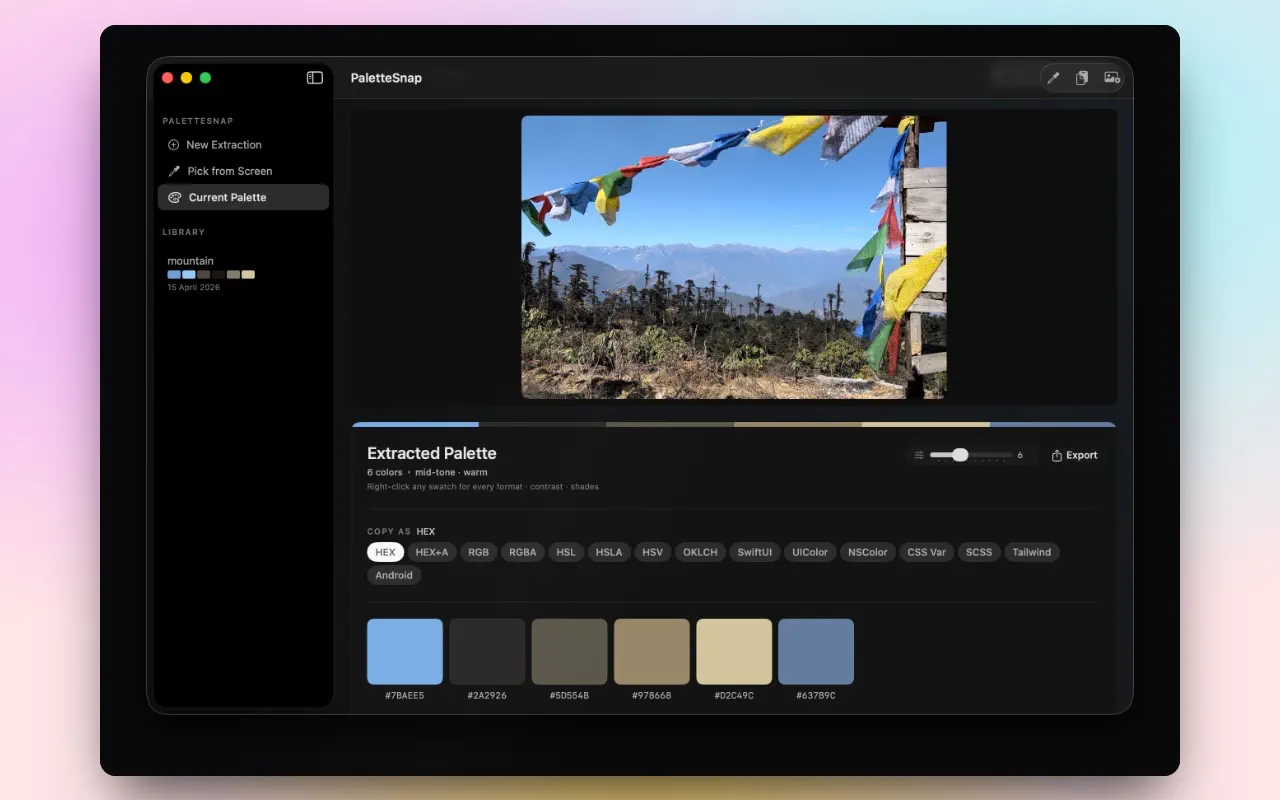


What is PaletteSnap?
PaletteSnap is a native macOS app that extracts a colour palette from any image. Drop in a photograph, an illustration or a design reference and it returns between three and twelve dominant colours, sorted by how much of the image they actually occupy, in every format you are likely to paste them into.
The problem
Everyone doing this today is using the eyedropper, and the eyedropper is lying to you.
Click a pixel in a photograph and you get that pixel — one sample from a gradient, possibly a compression artefact, possibly the one highlight that is nothing like the colour you thought you were picking. Click five pixels and you have five arbitrary samples, not the palette. The colour you are trying to name usually does not exist at any single point in the image; it is the centre of a cluster of thousands of similar pixels.
The other half of the problem is format. You extract five colours and then you need them as HEX for the mockup, as rgb() for the CSS, as HSL because you want to derive a hover state, and as Color(red:green:blue:) because the app is SwiftUI. That is twenty conversions by hand, each one an opportunity to transpose a digit.
What it does
- K-means++ clustering to find genuinely dominant colours rather than sampled pixels
- Adjustable palette size — three to twelve colours
- Sorted by dominance — the colour most present in the image comes first
- Every format — HEX,
rgb(),hsl(), SwiftUIColor, ready-to-paste CSS - Click to copy any single colour, or copy the whole palette at once
- Export as a PNG swatch card, as JSON, or as an Adobe
.aseswatch file - A saved library — name palettes, browse them in the sidebar, reload or rename them later
- Drag and drop — PNG, JPEG, TIFF, BMP, GIF and HEIC
How it works
K-means clustering treats every pixel as a point in colour space and finds the centres that the points group around. The result is a colour that represents thousands of pixels rather than one — which is why a palette pulled this way matches what you perceive in the image, and an eyedropper often does not.
The ++ matters more than it looks. Plain k-means picks its starting points at random, so the same image can produce a different palette on each run; k-means++ chooses initial centres deliberately, which makes the output stable and reproducible. Large images are downsampled first, because a palette from ten thousand representative pixels is the same palette as from ten million, and it arrives instantly instead of after a spinner.
The .ase export is the one that saves the most time in practice: it drops straight into Photoshop, Illustrator and InDesign as a real swatch group, so the colours arrive in the tool already named rather than being pasted in one at a time.
Who it is for
- Designers building a palette from a photograph, a moodboard or a reference
- Developers who have been handed an image and asked to make the UI match it
- Anyone assembling a brand identity from source imagery
- Anyone who has typed a hex code by hand and got one digit wrong
Real scenarios
The brand from a photograph. A client has one photograph they love and no brand guide. Pull the six dominant colours, export a swatch card, and you have something to present rather than something to argue about.
The app that has to match the artwork. A hero image exists and the interface around it does not. Extract, copy as SwiftUI, paste, done — with no manual conversion between colour spaces.
The moodboard. Ten reference images, ten palettes, saved and named in the library, compared side by side before anything is decided.
Why I built it
I was picking colours out of a screenshot with the macOS eyedropper and converting each one by hand for a SwiftUI file, and got a value wrong in a way that took twenty minutes to find because it was nearly right.
Everything after that followed from one decision: the extraction should be a real clustering algorithm rather than sampling, because the point is to answer "what colours is this image made of", and sampling answers a different question.
Alternatives and how it compares
- Adobe Color — free, excellent, browser-based, and tied to a Creative Cloud account for saving.
- Coolors — great for generating palettes; extraction from an image is the secondary mode.
- The macOS Digital Color Meter — already installed and free. It samples one pixel, which is exactly the problem.
- Sip and similar — polished Mac colour pickers, again built around sampling rather than clustering.
PaletteSnap's narrower claim: clustering rather than sampling, every export format including .ase, and it never touches the network.
FAQ
Why do I get different colours than the eyedropper?
Because they are answering different questions. The eyedropper reports one pixel; PaletteSnap reports the centre of a cluster of thousands.
How many colours should I ask for?
Five or six for most images. Below three you lose real information; above about eight the clusters start splitting shades that read as the same colour.
Will it open HEIC straight off my iPhone?
Yes, along with PNG, JPEG, TIFF, BMP and GIF.
Does it need an internet connection or an account?
Neither. Images and saved palettes stay on your Mac.