Convert images on a Mac
Step-by-step conversions between the common image formats on a Mac — with Preview, one Terminal command for a whole folder, or the free browser tools here — and what each conversion does to the file.
Updated · DRISH LABS
- HEIC to JPGThe full guide — one photo or a whole folder
- HEIC to PNGOpen the HEIC photo in Preview, choose File › Export and pick PNG — or convert a whole folder with one sips command in Terminal.
- PNG to JPEGOpen the PNG in Preview, choose File › Export and pick JPEG, or convert a folder at once with sips.
- JPEG to PNGOpen the JPG in Preview, choose File › Export and pick PNG, or batch-convert a folder with sips.
- WebP to JPEGOpen the WebP in Preview and export it as JPEG, or convert a folder with sips.
- WebP to PNGExport the WebP from Preview as PNG, or convert a folder with sips.
- PNG to WebPNeither Preview nor the built-in sips command can save WebP on a Mac, so use a converter that can — the free one on this site runs in your browser.
- JPEG to WebPA Mac cannot save WebP with Preview or sips, so use a converter that writes it — the free one on this site works in the browser.
- TIFF to JPEGOpen the TIFF in Preview and export it as JPEG, or convert a folder with sips.
- JPEG to PDFTo turn several JPGs into ONE PDF on a Mac, select them in Finder, Control-click and choose Quick Actions › Create PDF — the pages follow the order you selected them.
- AVIF to JPEGOpen the AVIF in Preview and export it as JPEG, or convert a folder with sips.
For one-off images in any browser, the free image format converter and HEIC converter run in the page and upload nothing.
 The faster way
Image Converter
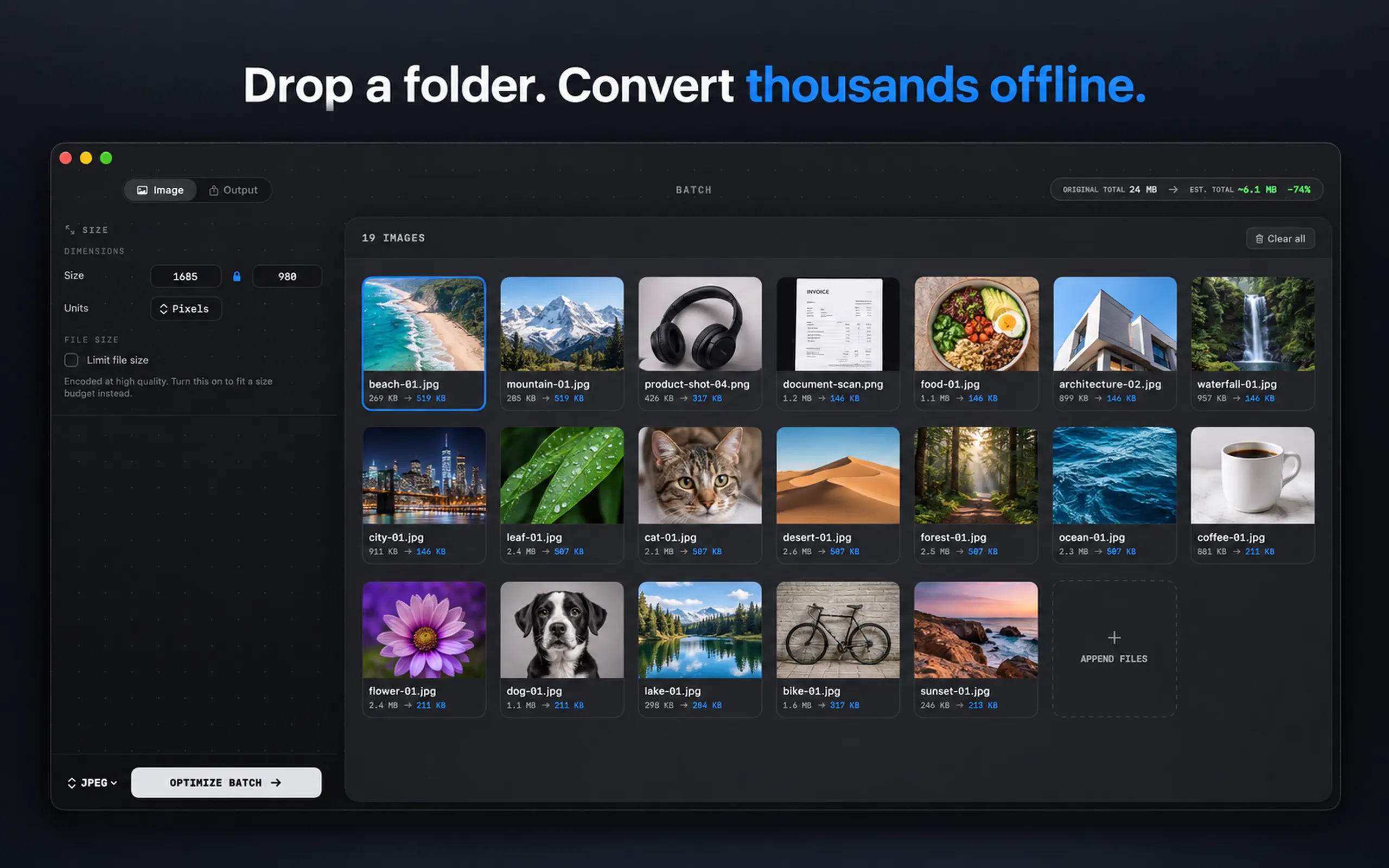
Batch convert HEIC to JPG, WebP, PNG and PDF on your Mac.
Not today? Get an email when Image Converter gets better