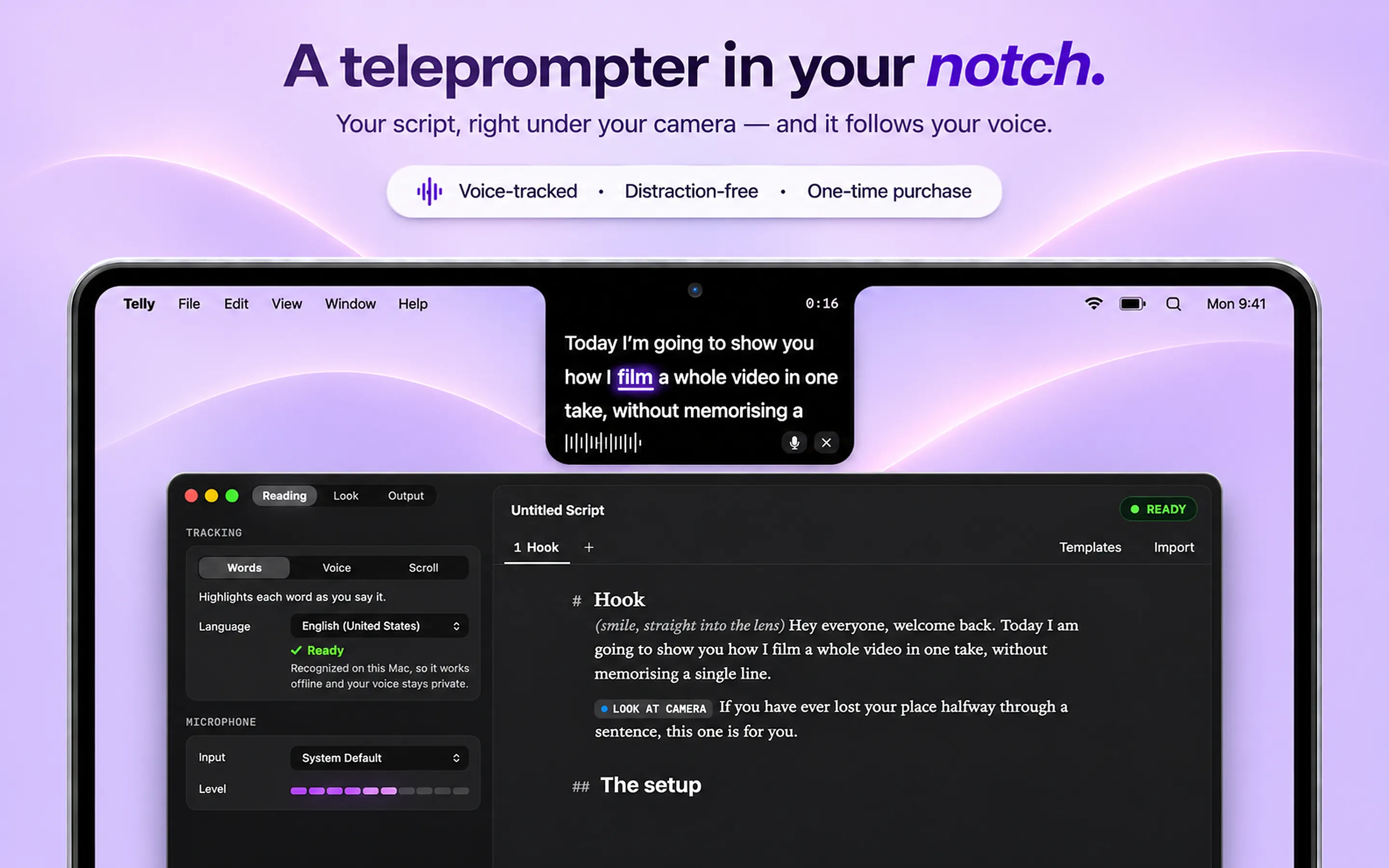
Below are the free ways to do the first job, then both jobs step by step with Telly, the teleprompter DRISH LABS makes for Mac, and the problems people hit.
Reading a script without it showing in OBS
OBS on a Mac captures in one of three ways: the whole display, one window, or one application. Your prompter stays off the stream if it is outside what you capture.
Free, with any prompter:
- In OBS, add your source with Window Capture or Application Capture rather than Display Capture, so only the window you choose is in the shot. (In recent versions these are capture methods of the macOS Screen Capture source.)
- Open your prompter, such as the free browser teleprompter on this site, in a narrow window at the top of the screen, right under the camera.
- Look at the OBS preview. If the prompter is not in it, it is not in the stream.
The catch is that window capture shows one window. If you stream your whole desktop (a tutorial, a game with overlays), the prompter has to hide itself instead.
With a prompter that hides from capture: some Mac prompters mark their window so screen capture leaves it out, and then Display Capture shows everything except the prompter. Telly is built to: Hide from screen sharing is on by default. Check the OBS preview once, because the capturing app decides; see how to hide a teleprompter from screen sharing for the background and the prompters that support it.
Method 1Read from Telly while OBS captures your display
- Open your script in Telly (PDF, DOCX, RTF, Markdown, text, or the presenter notes of a PPTX).
- On the Output tab, check that Recording›Hide from screen sharing is on. It is on by default.
- On the Look tab, set Style to Notch (or Top on a Mac without a notch) so the script sits right under the camera, or Floating to place it under an external webcam.
- On the Reading tab, choose Word Tracking and the script's language. Each word lights up as you say it, and the highlight holds when you ad-lib.
- In OBS, use Display Capture as usual and look at the preview: the prompter should not be there. If it is, capture a window or an application instead (the free way above).
- Press Start Take (⌘Return), or ⌃⌥⌘T from any app, including OBS, to start or stop a take without switching windows.
Method 2Show the script in the stream as a Browser source
Telly's browser remote serves the prompter to OBS on the same Mac or your local network.
- In Telly, on the Output tab, turn on Remote›Browser remote.
- Under OBS browser source, choose a background: Green, Blue or Clear (transparent). Copy the link beside it.
- In OBS, click + under Sources, choose Browser, name it, and paste the link into URL.
- Set Width and Height to the size you want in the scene (OBS starts at 800 × 600).
- With Clear, you are done: the page has no background. With Green or Blue, right-click the source, choose Filters, add a Chroma Key effect filter, and pick the matching key colour.
- Start a take in Telly. The browser source follows the take.
OBS's own browser source applies custom CSS that makes page backgrounds transparent by default (OBS knowledge base), which is why the Clear option needs no keying.
About the link: it carries a private key. Anyone who has it can watch the script and pause, turn pages or stop the take, so don't paste it into a stream chat or a screenshot. New Link in the same section makes a fresh one; sources and phones using the old link stop working.
A phone as your remote or monitor
The same browser remote shows the prompter on a phone or tablet: scan the QR code in Output›Remote. Use it as a confidence monitor beside the camera, or to pause and turn pages from across the room while OBS runs on the Mac.
When something goes wrong
- The prompter appears in the stream. Check Hide from screen sharing is on, then check how OBS captures: a window capture of Telly itself, or a camera pointed at the screen, will show it.
- The browser source is blank. Make sure Browser remote is still on in Telly, that OBS is on the same Mac or network, and that the link is the current one (after New Link, paste the new link).
- The port is in use. Change Port in Output›Remote and press Apply; Telly also uses a second port for live updates and tells you which.
- Green edges around the text. Use Clear instead of keying, or raise the chroma key's similarity a little.
- You want to record the prompter itself (for a tutorial): turn off Hide from screen sharing for that recording.
Telly's limits: it needs macOS 26 or later and is Mac only. It does not record video itself, by design: OBS, QuickTime or your camera does the recording.
For the reading side, see how to read a script on camera without looking like you're reading. For a camera with glass in front of it, see how to use a Mac with a teleprompter mirror rig.
FAQ
Does OBS have a built-in teleprompter?
No. Use a separate prompter and keep it out of what OBS captures, or add a prompter page to OBS as a Browser source if you want the script on screen.
How do I hide my teleprompter from OBS?
Capture a window or an application instead of the whole display, or use a prompter built to hide itself from screen capture, such as Telly, and check the OBS preview.
How do I add a teleprompter to OBS as a browser source?
Copy the prompter's browser-source link, then in OBS add a Browser source and paste the link into URL. In Telly, the link is in Output › Remote, with a green, blue or clear background.
Can I control the teleprompter while OBS is in front?
Yes. In Telly, ⌃⌥⌘T starts or stops a take from any app; during a take, ⌃⌥⌘P pauses, ⌃⌥⌘R restarts and ⌃⌥⌘← / → turn pages. A phone running the browser remote can also pause and turn pages.
Is the OBS link safe to share?
No. It carries a private key that lets anyone with it watch and control the take. Keep it private, and use New Link if it leaks.