The app doing the capturing decides whether to honour the request, and Apple's own documentation says not to rely on it. Below are both methods with the steps for Zoom, Google Meet and Microsoft Teams, how macOS keeps a window out of a capture, what prompter makers say about each app, how to check the share preview, and why an Elgato Prompter can go blank.
Method 1Share a window, not your screen, free with any prompter
Whatever is inside what you share, everyone sees; whatever is outside it, only you see. So pick the one window you want to show and leave the prompter out of it.
Zoom
- Click Share in the meeting controls.
- On the Screens tab, select the application window to show (hold Shift to pick more than one), then click Share.
- Or, on the Advanced tab, choose Portion of Screen and drag the green border around the part to show.
Google Meet (in Chrome or Safari)
- Click Share screen (the "Present now" button in some versions).
- Choose A window or A tab rather than Your entire screen, then pick it.
Microsoft Teams
- Click Share in the meeting controls.
- Choose a single Window rather than a whole Screen.
Then put the prompter at the top of the screen, right under the camera, outside the shared window. The free browser teleprompter on this site works well like this: open it in a narrow window under the webcam. For slides, play them in a window and share only that window; how to read notes on a Zoom call has the Keynote and PowerPoint steps.
The catch: you can show only what is in that window. Switch to another app mid-call and you have to share again.
Method 2An invisible teleprompter that hides itself from capture
An invisible teleprompter stays on your screen while screen sharing and recording apps capture everything around it, so you can share your entire screen and switch apps freely. How it does that, and why it can fail, is in the next section.
Two honest caveats:
- It depends on the capturing app. The prompter asks macOS to leave its window out, and the screen-sharing app does the capturing. Test the exact app you will use, and test again after a macOS or app update.
- It only hides from software. A phone camera pointed at your screen, or a second camera filming your monitor, sees everything.
Prompters that say they hide from screen sharing, in their own words on their own pages, read 24 November 2026:
- Free: Textream ("Hides the overlay from screen recordings and video calls"), Mootch ("Stays hidden from screen shares on Zoom, Meet and Teams"), NotchPrompter ("Invisible to recording"; free on GitHub, $4.99 on the Mac App Store).
- Free to start: CueNotch (Ghost Mode), Avocado ("Hidden from screen shares and recordings"), Tellie ("invisible to screen recording, Zoom, Meet, and FaceTime"), GoTeleprompter ("in apps that respect it"), VoicePrompter ("excluded from screen capture at the macOS level").
- Paid: Telly, Notchie ("in supported apps"), ShareSpeak (names Zoom, Teams, Meet, Loom and OBS), GlassCue ("in apps that use the system's capture"), Moody ("excluded from screen capture and screen sharing").
Two that don't promise it: Takes keeps its prompter out of its own recordings and says "we have not tested Zoom or Meet"; Elgato's Virtual Prompter doesn't mention screen sharing on its pages. Most of these also sit in the notch; see notch teleprompter apps compared.
How does macOS keep a window out of a capture?
The window asks to be left out, and the app doing the capturing decides whether to listen.
- The window asks to be left out. An app can set its window's sharing type to "none", which tells macOS that other apps should not read the window's contents. A capture that honours it records everything on the screen except that window.
- The capturing app decides. Zoom, Meet in a browser, Teams, OBS and QuickTime each grab the screen through one of macOS's capture interfaces. OBS's macOS Screen Capture source, for example, is built on ScreenCaptureKit, Apple's current one. Whether the marked window is left out depends on that interface and how the app uses it, so two apps on the same Mac can disagree.
- Apple doesn't promise it. Apple's documentation for that "none" value now calls it "a legacy constant that macOS no longer uses" and says: "Don't use this value to hide or omit content from being captured." When a developer reported on Apple's forums that a window marked this way still appeared in ScreenCaptureKit captures on macOS 15.4, an Apple engineer replied in July 2025: "At this time there are no public APIs for preventing screen capture."
- The careful vendors say so. CueNotch: "A few apps and macOS versions ignore the request, so check your share preview before you present." GlassCue limits its claim to "apps that use the system's capture", GoTeleprompter to "apps that respect it".
So treat "hidden from screen sharing" as something to check in each app you share from, and again after an update, not as a switch you set once.
Which call and recording apps does an invisible teleprompter stay out of?
It depends on the app doing the capturing, and no prompter maker publishes test results. The table shows which apps each maker names on its own page, read 24 November 2026; a claim is not a test, so check each app with the steps below.
| Where you share or record | Prompter makers that name it |
|---|---|
| Zoom, sharing the entire screen | ShareSpeak, Tellie, Mootch, NotchPrompter |
| Google Meet in Chrome, entire screen | ShareSpeak, Tellie, Mootch, NotchPrompter |
| Google Meet in Safari, entire screen | None name a browser |
| Microsoft Teams, sharing a screen | ShareSpeak, Mootch |
| FaceTime, sharing the screen | Tellie |
| OBS, macOS Screen Capture (Display Capture) | ShareSpeak |
| QuickTime Player, New Screen Recording | None by name |
| macOS Screenshot (⇧⌘5), Record Entire Screen | None by name |
| Loom | ShareSpeak |
| AirPlay mirroring or Sidecar | None |
| Elgato Prompter or another DisplayLink display | None |
If an app in your list shows the prompter, share one window instead (Method 1), or put the prompter on a display you don't share.
Which way should you use?
Share one window if you can; it works with any prompter and costs nothing. Use a hidden prompter when you need to share the whole screen, and only after checking it in that app.
| Setup | Cost | Share the whole screen? | Works with any prompter? | Watch out for |
|---|---|---|---|---|
| Share one window | Free | No | Yes | Re-sharing when you switch apps |
| Share a portion of the screen | Free | No | Yes | Moving a window into the border |
| Prompter on a second display you don't share | Free if you own one | Yes, the other display | Yes | Your eyes go to the second display, off the camera |
| Prompter hidden from capture | Free or paid app | Yes | No, the app must support it | Test each capturing app first |
How to check the share preview
Do this once for each app you share from, with the prompter showing a script, and again after a macOS or app update:
- Look at the picker's preview. Zoom's Share window and Chrome's "Choose what to share" dialog show a small preview of each screen. If the prompter is in the preview, it will be in the share. If it isn't, that is a good sign, not proof: go on to step 2.
- Check the call itself. Join the meeting from a phone or a second computer, start sharing, and look at what the second device shows. This is the only check that shows what viewers get.
- Make a test recording. Press ⇧⌘5, choose Record Entire Screen, record ten seconds and stop. Play it back: the prompter should not be in it. This tests macOS's own recorder, not your call app, so it doesn't replace step 2.
- In OBS, look at the preview with your macOS Screen Capture source on. Step-by-step: how to use a teleprompter with OBS on a Mac.
If the prompter shows up, either the capturing app is not honouring the hide, or the setting is off in the prompter. Fall back to sharing a window.
Why does an Elgato Prompter stay blank?
Because it gets its picture by capturing the Mac's screen, so a prompter hidden from capture can be missing from it. Elgato's own FAQ says the Prompter "uses a technology called DisplayLink" (Elgato, updated 13 November 2026), and DisplayLink's Mac driver draws its screen by capturing the Mac's: macOS "requires the user to permit 'Screen Recording' for DisplayLink driver to work properly" (DisplayLink). The Prompter then shows the desktop or black where the script should be. A monitor on a DisplayLink dock can do the same.
- Turn the prompter's hide switch off while you read from a Prompter or a DisplayLink display. If that one switch covers every window of the app, the prompter on your main screen is no longer hidden either, so share a single window while it is off.
- Still blank with the hide off? Check that DisplayLink Manager is allowed under System Settings›Privacy & Security›Screen Recording, as DisplayLink's page describes, and follow Elgato's no-image steps.
For the whole rig, see how to use a Mac with a teleprompter mirror rig or Elgato Prompter.
Hiding Telly from screen sharing
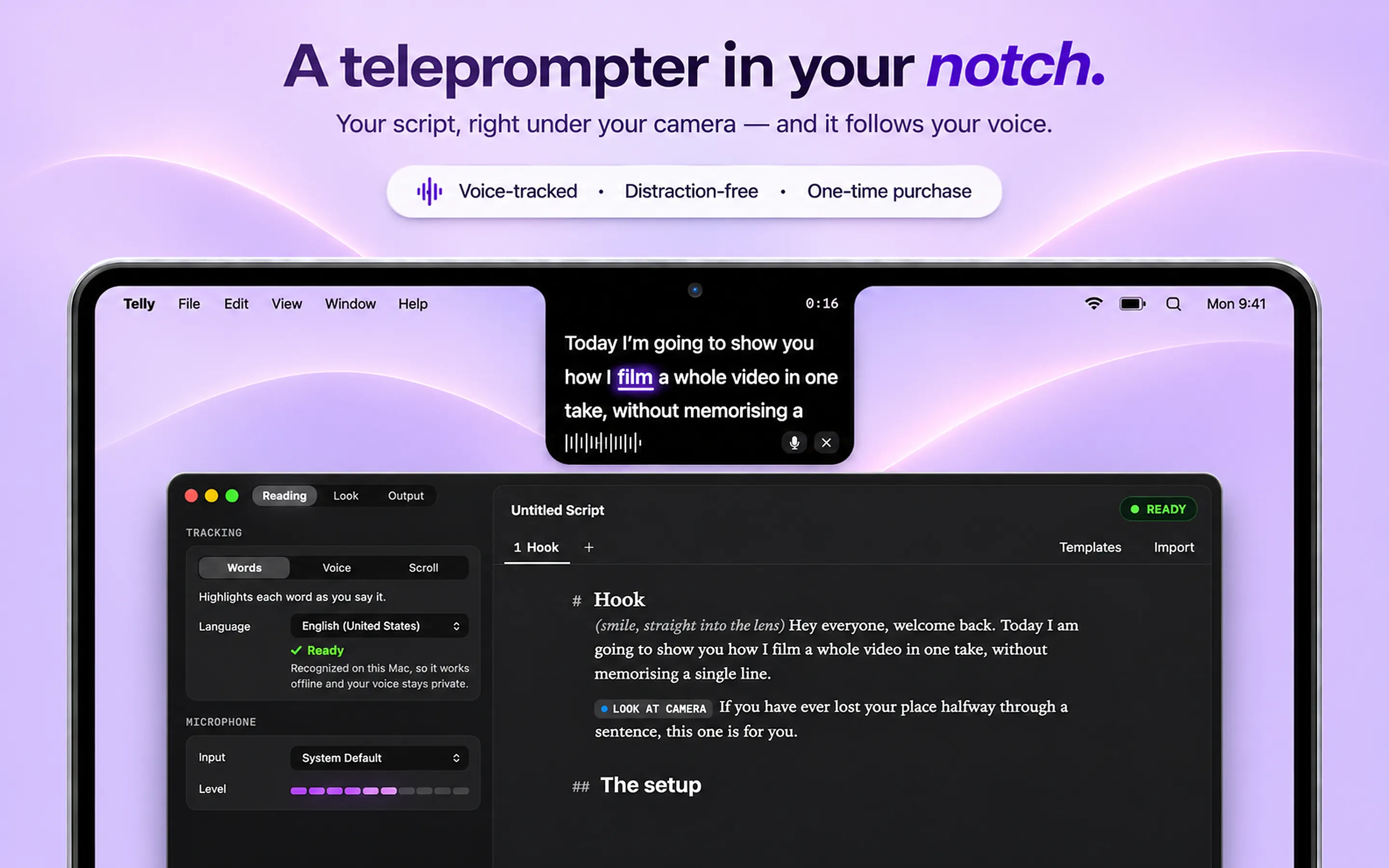
Telly, the teleprompter DRISH LABS makes for Mac, is built to hide from screen sharing, and the switch is on by default: Output›Recording›Hide from screen sharing. It works the way this page describes: Telly asks macOS to leave the prompter out of screen sharing and recordings, and the app doing the capturing decides whether to honour that. We haven't yet tested it app by app in Zoom, Meet, Teams, FaceTime, OBS, QuickTime and Loom; until those results are on this page, with dates, check your own call app first.
Check it yourself in 30 seconds, before your call:
- Open Telly with a script showing in the notch.
- Start your call app's screen share of the whole screen and look at it from your phone joined to the call. Or open QuickTime Player›File›New Screen Recording, record ten seconds of the whole screen and play it back.
- If the prompter is there, share one window instead (Method 1), and tell us through Telly's help page which app showed it.
Turn the switch off only when you want the prompter itself in a recording, for example to film a tutorial about it. The external display output follows the same switch. One exception to know: an Elgato Prompter, or any other DisplayLink display, gets its picture by capturing the Mac's screen, so with this switch on it may stay blank. Turn off Hide from screen sharing while you use one.
Telly also puts the script in the notch, right under the camera, and follows your voice word by word, so it deals with your eyeline and your pace as well. It is $24.99, one purchase on the Mac App Store, and needs macOS 26 or later.
FAQ
Can people see my teleprompter when I share my screen?
If you share your entire screen and the prompter is an ordinary window, yes. Share a single window or a portion of the screen, or use a prompter that hides itself from screen capture, and check the share from a second device.
How do I share my screen on Zoom without showing my notes?
Click Share, then pick a single application window on the Screens tab, or Portion of Screen on the Advanced tab. Keep the notes outside it.
Which teleprompter apps are invisible on screen share?
On their own pages (read 24 November 2026), Telly, Textream, Mootch, NotchPrompter, CueNotch, Avocado, Tellie, GoTeleprompter, VoicePrompter's Mac app, Notchie, ShareSpeak, GlassCue and Moody say they hide from screen sharing. Each relies on the capturing app honouring the request, so test with the app you will share from.
Why does my invisible teleprompter still show up when I share my screen?
The prompter only asks macOS to leave its window out; the screen-sharing app does the capturing and may not honour it, and Apple's documentation says not to rely on that request. Check the setting is on in the prompter, test from a second device, and share a single window if it still shows.
Is a hidden teleprompter also hidden from my own screen recordings?
Often, but check. Recording apps capture the screen through the same macOS interfaces as sharing apps, and each one may or may not honour the hide. Make a ten-second test recording with the app you will use, and turn the setting off when you want the prompter recorded.
How can I check whether my prompter shows in a share?
Make a ten-second screen recording with ⇧⌘5 and play it back, or join the call from a second device and watch the shared screen there.