Below is how to use the recording Teleprompter, how to see your notes when presenting live, and where a dedicated teleprompter helps. Microsoft's steps were read from its support pages on 18 November 2026. The Teleprompter came with the recording experience Microsoft rolled out to Microsoft 365 in 2022; older one-time-purchase versions may not have it, and menus move between versions, so check your own.
Method 1PowerPoint's Teleprompter view, for a recorded presentation
Use this when you are recording a narrated presentation or a video of yourself with the slides.
- Write what you want to say in each slide's Notes pane. This is the text the Teleprompter shows.
- Start a recording. On Windows the tools are on the Record tab; on a Mac, click Record at the top right, or choose Record›From Beginning or From Current Slide.
- In the recording window, choose Teleprompter as the view. On Windows it is in the Views menu at the lower right, beside Presenter View and Slide View.
- Turn on auto-scroll and set the speed that matches how fast you talk (Microsoft describes this in its Windows steps).
- Select Start recording. A countdown begins, and the notes for the current slide sit above the slide preview while you speak.
Microsoft's own description is that Teleprompter view "allows you to refer to your script while maintaining eye contact with the camera." PowerPoint for the web cannot record a slide show, so this is a desktop feature only.
What to know before you rely on it:
- The scroll runs at a set speed. It does not listen to you, so if you pause or go back a line, you adjust the speed as you go.
- One slide's notes at a time. Write the notes for each slide as a short spoken paragraph, not a block of bullet points, and they read naturally.
- It belongs to the recording tools. When you present live, your notes are in Presenter View instead.
Method 2Presenter View, for presenting live
When you present to a room or on a call, your notes live in Presenter View.
- With two displays (a laptop and a projector or second screen), choose Slide Show›Presenter View. You see the current slide, the next one and your notes; the audience sees only the slides. Make the notes larger with the font buttons in the Notes pane.
- With one screen on a video call, play the slides in a window and share only that window, so your notes stay off the call. Step-by-step instructions for Zoom, PowerPoint and Keynote are in how to read notes on a Zoom call on a Mac.
Presenter View puts the notes on the laptop screen, below the camera, so on a call your eyes drop to read them. Moving the notes close to the top of the screen helps.
Method 3A free browser teleprompter beside the slides
For a script you want to read word for word, the free teleprompter on this site runs in a browser tab. Paste your notes, set a pace in words per minute (140 is a good start), and open it in a narrow window at the top of the screen, right under the camera. Share only the slides window on the call, and the prompter stays private. It scrolls at the pace you set and does not listen.
Method 4A teleprompter that follows your voice
The cost of every method above is the scroll. A set speed is always slightly wrong for the sentence you are on, and on a call you also have to arrange windows so the notes stay off the share.
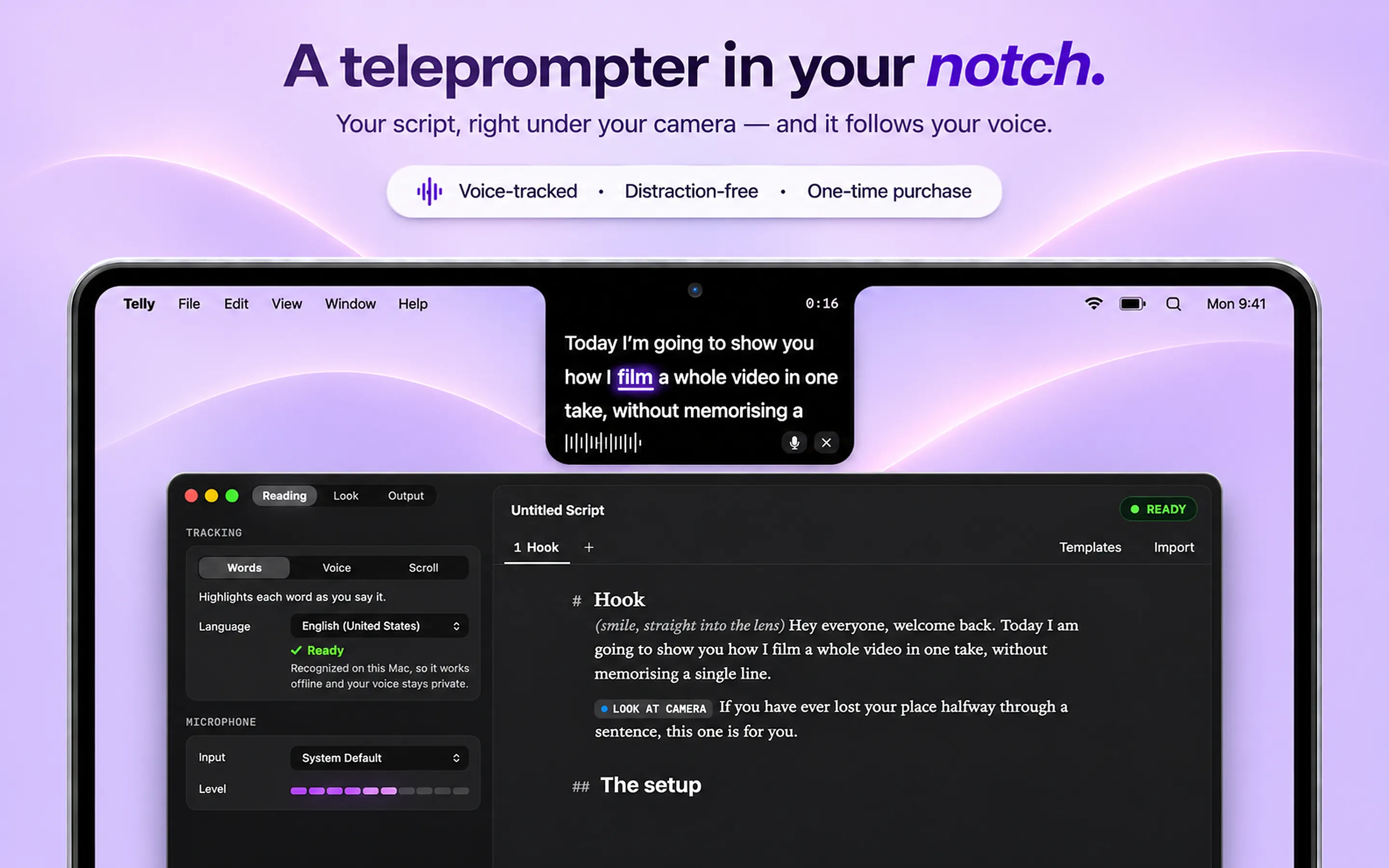
Telly, the teleprompter DRISH LABS makes for Mac, removes both:
- It reads your PowerPoint notes. Open a PPTX and Telly imports its presenter notes as the script, or open a PDF, DOCX, RTF, Markdown or text file.
- It follows your voice. Each word lights up as you say it; pause and it waits, go off script and the highlight holds, then picks up where you left off.
- It sits under the camera. The script is in the notch at the top of the screen, right under the lens (on a Mac without a notch, at the top centre of the screen), or in a floating window.
- It is built to stay out of the share. With Hide from screen sharing on, the default, it asks macOS to leave the prompter out of screen sharing and recordings, so you can share your whole screen. Check your call app once before you present (how to check).
Its limits: it is a teleprompter, not a slide presenter, so you still run the slides from PowerPoint or Keynote, and it needs a Mac with macOS 26 or later.
Presenting from Keynote? See does Keynote have a teleprompter.
Writing notes that read well aloud
- Write sentences, not bullets. Bullets are reminders; a teleprompter needs the words you will say.
- Keep each slide's notes short. About 70 words is 30 seconds at 140 words a minute.
- Mark the pauses. A blank line or a cue such as [PAUSE] gives you a place to breathe and change slides.
- Read it aloud once. Rewrite any sentence you stumble on twice.
For eyeline and pacing on camera, see how to read a script on camera without looking like you're reading. If you are new to prompters, how a teleprompter works explains the kinds.
FAQ
Does PowerPoint have a teleprompter?
Yes, when you record. PowerPoint for Microsoft 365 on Windows and Mac shows your speaker notes in a Teleprompter view near the top of the screen while you record a presentation. It is part of the recording tools rather than the live slide show, and PowerPoint for the web cannot record.
How do I turn on the teleprompter in PowerPoint?
Start a recording (the Record tab on Windows, or the Record button at the top right on a Mac), then choose Teleprompter as the view. Your notes for each slide appear above the slide preview.
Does PowerPoint's teleprompter scroll automatically?
Microsoft's Windows steps describe an auto-scroll you can turn on and set to your preferred speed. It scrolls at that speed rather than following your voice.
Can I see my notes while presenting PowerPoint on a call without the audience seeing them?
Yes. Use Presenter View with two displays, or with one screen play the slides in a window and share only that window. Anything outside the shared window stays private.
Is there a teleprompter that reads PowerPoint notes and follows my voice?
On a Mac, Telly imports the presenter notes from a PPTX and highlights each word as you say it, and it is built to stay out of screen sharing; check your call app before you present.