Below is how to see your notes in each Keynote mode (Apple's steps, read 18 November 2026), how to keep them off a video call, and how to move them into a teleprompter. For PowerPoint, see does PowerPoint have a teleprompter.
Method 1Presenter notes while you rehearse or present
- Write what you will say in each slide's presenter notes (View›Show Presenter Notes).
- Choose Play›Rehearse Slideshow. Rehearse mode shows the presenter display on your Mac, even with no second display connected.
- Make the notes readable: move the pointer over the Presenter Notes field and click a font button in its top-left corner. You can drag and resize the items on the presenter display, including the notes.
- When you present with a second display or a projector, the presenter display with your notes stays on your Mac and the audience sees only the slides.
Long notes do not move on their own: scroll them as you go, or keep each slide's notes short enough to fit.
Method 2Notes on screen while you record a slideshow
Keynote can record your narration over the slides. Apple's steps:
- Click the slide to start from, then choose Play›Record Slideshow. The presenter display opens with recording controls at the bottom.
- Show the presenter notes, and set their size with the font buttons in the top-left corner of the Presenter Notes field.
- Click the Start Recording button. After a three-second countdown, Keynote records.
- Press the Right Arrow to advance and the Left Arrow to go back. The Mute button pauses the narration.
- Click the button again to stop, and Play to preview. Press Esc to leave.
This records your voice over the slides, so where your eyes go does not show. For a video of yourself on camera, the notes need to be close to the lens, which is what the methods below do.
Method 3Keep the notes off a video call
On a single screen, play the slides in a window and share only that window:
- In Keynote›Settings›Slideshow, uncheck Show presenter display window in other applications.
- Choose Play›In Window, then click Play. The slideshow and the presenter display open in separate windows.
- In the call, share only the slideshow window, and drag the presenter display up under the camera.
Step-by-step for Zoom, with PowerPoint as well: how to read notes on a Zoom call on a Mac.
Method 4Your Keynote notes in a teleprompter
When you read a script word for word, a teleprompter beats the presenter display: the text sits right under the camera and keeps your place.
Free: copy your notes into the browser teleprompter on this site, set a pace in words per minute, and open it in a narrow window at the top of the screen, under the camera. It scrolls at the pace you set.
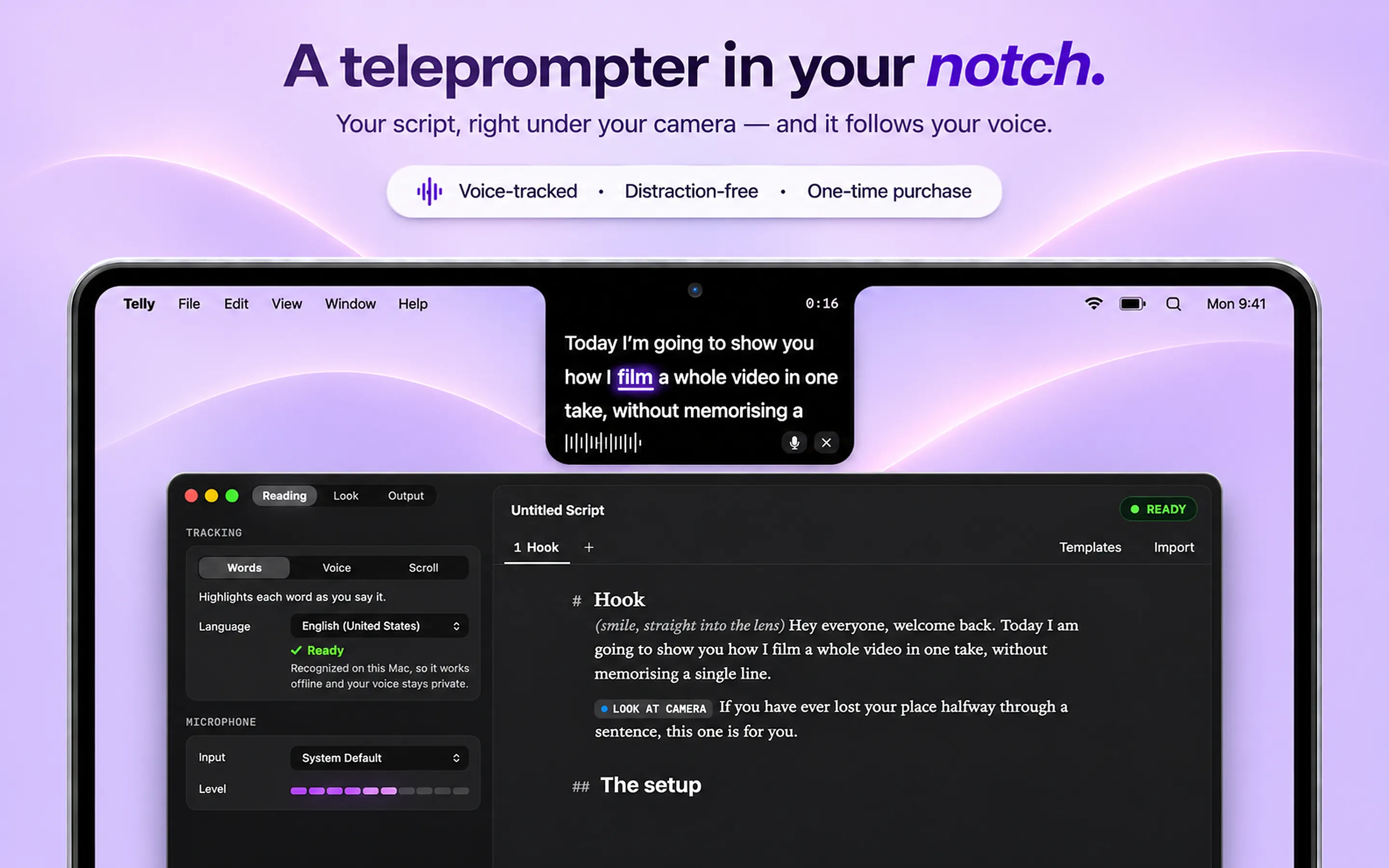
With Telly, page by page: Telly, the teleprompter DRISH LABS makes for Mac, imports presenter notes from PowerPoint files, so take the Keynote presentation through PowerPoint format first.
- In Keynote, choose File›Export To›PowerPoint and save the file.
- In Telly, open the PPTX (or drag it in). Each slide's notes become a page, in slide order; slides without notes are skipped. A Keynote file dragged in directly gets a reminder to export it first.
- Check the pages. Apple's export steps don't say what happens to presenter notes, so if a page is missing, look at that slide's notes in the exported file.
- On the Reading tab, choose Word Tracking and the language of your notes, then press Start Take (⌘Return).
Telly shows the script in the notch at the top of the screen, right under the camera, lights up each word as you say it, and holds when you ad-lib. Pages scroll as one continuous script, so there is no stop at each slide. With Hide from screen sharing on, the default, it asks macOS to leave the script out of screen sharing, so on a call you can share your whole screen with the slides. Check it once before the call: look at your share from your phone, or make a ten-second QuickTime screen recording and play it back.
Its limits: Telly is a teleprompter, not a slide presenter, so you still advance the slides in Keynote; it does not read .key files directly; and it needs macOS 26 or later.
Writing notes you can read aloud
- Sentences, not bullets. Bullets remind you; a teleprompter needs the words you will say.
- About 70 words per slide is 30 seconds at a common pace of 140 words a minute.
- Mark the slide change. A cue such as
[NEXT SLIDE]at the end of each page tells you when to click; in Telly, bracketed cues show as badges and are never expected aloud.
For eyeline and pacing on camera, see how to read a script on camera without looking like you're reading.
FAQ
Does Keynote have a teleprompter?
Not by that name. Keynote shows your presenter notes on the presenter display when you rehearse, present or record a slideshow, and you can enlarge them, but they do not scroll by themselves.
How do I see my presenter notes in Keynote on one screen?
Choose Play › Rehearse Slideshow to see the presenter display with no second screen, or play the slideshow in a window, where the presenter display opens in a separate window.
How do I make Keynote presenter notes bigger?
Move the pointer over the Presenter Notes field on the presenter display and click a font button in its top-left corner.
Can I see my notes while recording a Keynote slideshow?
Yes. Play › Record Slideshow opens the presenter display, where you can show the presenter notes while you record your narration.
Can a teleprompter import Keynote notes?
Telly imports presenter notes from PowerPoint files, so export the presentation with File › Export To › PowerPoint and open the PPTX: each slide's notes become a page.